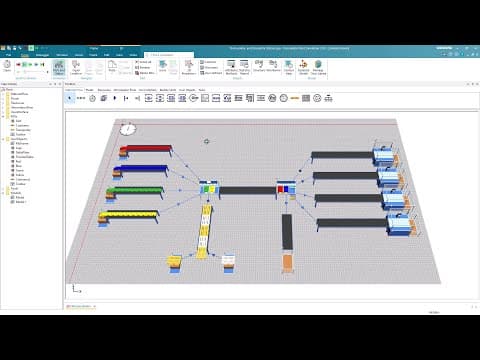
[0:09]In this video, we will introduce the assembly and dismantle station. As you can see in the running example, we load parts to containers by using in station. In general, an assembly station adds mounting parts to a main part, for example, doors to a car body. We will also build a model where we create a new table consisting of legs and a table plate. As you can also see, we are using a dismantle station in the running example. A dismantle station removes mounting parts from a main part. In our example, it removes the different parts from the containers and distributes them to successes. Now we will reset the model to rebuild it. First insert one source and one conveyor. Now we will copy and paste the source and the conveyor four times. However, instead of selecting the source, the conveyor and the connector between them separately, we can also just drag the mouse over the objects. In this way, the connector will also be selected and you do not have to select them separately.
[1:31]Our four sources will produce four different parts. To do so, duplicate the part in the class library four times and name the parts, red, blue, green and yellow. We'll skip the renaming sequence in the video. After we renamed the parts, we right click on the first part and select edit 3D properties. Then we switch to the appearance tab and check the box material active. Now we are able to edit the color of the part at diffuse color. We do this for the remaining three parts as well. However, we will skip the color selection for the remaining parts in the video. After we adjusted the appearance of the parts, we now drag each part onto a source to let the source produce the according part. Then insert another source, which will produce the main part on which the four parts will be mounted. Afterwards, drag the container to the source. Now insert a conveyor and connect the source to the conveyor.
[2:42]We then insert a second source, which will produce a second type of container. Therefore, we create a second container which we name container two. To differentiate the container visually, we change the color to white.
[3:06]We now insert an assembly station, a conveyor and a drain. Then we connect all conveyors to the assembly station.
[3:31]Now we open the dialog of the assembly station. Here we see the field main MU from predecessor. In this field, we need to enter the predecessor which provides the main MU. Since the containers are provided from the fifth conveyor, we need to insert five. You can also hover over the connector to see the tooltip which tells us which predecessor the conveyor is. Then we need to choose if we want the assembly table to attach the MU or delete them. In our case, we choose attach, since we want the parts to be mounted to the containers. Then we determine if the exiting part should be the main MU or a new object. We select main MU since the main part which exits the assembly station is the container with attached parts. In a second example, we will look at the assembly mode, delete MU and let a new MU exit. In sequence, we can determine the sequence in which the station requests its parts or services. In the assembly table, we can choose from four different options. If we choose none, then no assembly table is used. If we choose predecessor, we can open a table. In the first column, we need to insert the predecessor, which provides the part and the amount into the second column. The third option is MU types. Here we enter the MU into the first column and the amount into the second column. This mode is generally used when you work with one type of main MU. The fourth option is depends on main MU. Here we enter the name of the main part into the first column and into the second one, we enter the name of the MU, which should be mounted onto the main MU. In the third column, we enter the number of parts. We select depends on main MU, since we want to use T container types. We want that the assembly station attaches red and blue parts to the first type of container. To do so, we enter container in the first column. Then we enter red as MU name and set the number to two. If we press enter, a second row will be added. In the first column of the second row, we do not enter anything. Since we still want to attach parts to the same type of container. We just enter blue as MU name and two as number and do the same for the green part.
[6:22]Now we start the simulation.
[6:41]As you can see, the parts are attached according to the assembly table.
[6:49]Now we want to dismantle the assembly again. Therefore, we replace the drain with a dismantle station. Then we insert a conveyor, a station and a drain.
[7:11]We then copy and paste them three more times.
[7:26]Finally, we insert a conveyor and a drain and connect the dismantle station with all conveyors.
[7:49]Now we open the dialog of the dismantle station. At sequence, we can select from three different ones. Here we basically choose how the dismantle station distributes its parts to the successes. We select main MU after other MU as sequence. Then we open the dismantle table. At the column MU, we drag and drop the first part from the user object folder. In the dismantle station, we need to drag and drop the parts from the class library, since we need to insert a class, rather than the name of the part, as in the assembly station.
[8:36]In the second column, we need to enter the amount of parts that should be unloaded. Here we enter two. Keep in mind that you could also enter minus one, if you want to unload all parts of the corresponding class. At successor, we enter one. We repeat this for each other part.
[9:13]In the assembly station, we attached parts to the container. So in the dismantle station, we choose attached MU as dismantle mode. The main MU should be distributed to the fifth successor. We now start our simulation again.
[9:50]As you can see, the parts are detached according to the dismantle table.
[9:58]Now we will have a look at a second example. This example is already prepared. As we can see, we have two lanes which are connected to the assembly station. In this assembly station, we want to create a new MU. Therefore, we need different types of MU. The first MU are the legs of a table and the second MU is the table plate. What we want to do is that the assembly station assembles the legs to the table plate and a table exits the assembly station. We have therefore already created the legs, the table plate and the finished table. Now we want to let the source produce this legs and the table plates. Therefore, we drag and drop them to the sources. Then we open the assembly table. Here we now select as assembly table, MU types. We could also select depends on main MU. However, since we do not have multiple types of main MU, the assembly table MU types is more convenient. We drag and drop in the first column the legs and enter four as number. Since we will create a new main part, and since the table plate is not a container where we can attach parts, we have to choose the assembly mode, delete MU. For exiting MU, we choose new MU. Since the table plate should be deleted and be replaced by a new MU of type finished table. To define the newly created MU, we simply drag and drop the finished table class into it. So what we this time do is to use four legs and one table plate to create a new table. Then we open the dismantle station. At sequence, we choose main MU after other MU. In the dismantle table, we then drag and drop the legs, enter four as number and set two as successor. At dismantle mode, we choose create MU. As we stated before, the exiting MU from the assembly station is a new MU of type finished table. And since the finished table objects are not of type container, we cannot use the dismantle mode to attach MU. So we select create MU as dismantle mode. In this way, we will create new single legs from the finished table objects, which can be distributed to the successor. If we leave the exiting MU at main MU, the station will dismantle the legs from the table and distribute them to the successor. However, the finished table object would be distributed to the successor as a whole as well. What we want is that the legs are dismantled and a new table plate object is distributed to the successor. So we need to select new MU for exiting MU, and for the MU text box, we can now simply drag and drop the table plate class into it.
[13:10]Now we can start our simulation.
[13:28]As you can see, the table is assembled and disassembled as we wish. This concludes our video on the assembly and dismantle station.


