[0:00]Let me ask you something. Have you ever lost a fight and you knew your aim was right? You pressed the skill at the perfect time. You targeted the right hero. And somehow, you still missed, or your hero felt just a little bit slower than the enemy. Like they were reacting faster than you, moving cleaner than you. Here's the thing nobody tells you, it's probably not your mechanics. It might be your settings. Most high-rank players have spent hours fine-tuning things that the average player never even opens. And today, I'm going through all of it. The exact setup that gives you cleaner movement, better vision, and more consistent skill hits. So stay till the end, because the camera sensitivity section alone can change the way your entire game feels. Let's dive in. Graphics. When you open up your settings, the first thing you'll see is the graphics tab, and you will have three options, smooth, HD, and custom. If your phone struggles with heavy games, go smooth. Better performance is always worth more than pretty visuals. A laggy game with beautiful graphics is just a beautiful loss. If you have mid- to high-end device, HD graphics works fine as a default. But if you want actual control over what your game looks like, I suggest you to choose custom because custom lets you touch everything individually instead of accepting a preset that wasn't built for your specific phone. Map, model, and effect quality. Inside custom, you'll find three options to tune. Starting with map quality controls that indicates how detailed the terrain looks when you roam around the map. Then, model quality controls that indicates your hero visuals, the body movements, and others. And lastly, effect quality controls that indicates all the skill animations flying around during fights. If your device can handle it, keep them high. Because more clarity means better visibility in chaotic team fights. When five heroes are using ultimates at the same time, the last thing you want is a blurry mess where you can't tell who is where. But for low-end device, lower graphics is always recommended. Because a smooth 30 frames gameplay beats a stunning 15 every single time. In frame rate options, set it to maximum your device allows. For resolution options, set it one step lower than your device's allowance. Because it will help you to maintain that maximum FPS during processor bottleneck, and it will be a small sacrifice to keep it consistent during team fights. Because higher frame rate means smoother movement, and smoother movement means your inputs register cleaner and faster. This isn't just a comfort thing. High FPS players genuinely have a reaction advantage, and that's not an opinion. It's just how screens work. While you're there, turn the outline option on, because it adds a subtle contrast around heroes that makes enemies pop during chaotic fights. Small thing, but makes a real difference when six skills are going off at once, and you're trying to find the carry hiding behind three tanks. A quick thanks to today's sponsor, Eldo Dorado.gg. Many players like using skins to customize their favorite heroes. If you're planning to pick up skins and you're looking for game top-ups, let me introduce you to Eldo Dorado.gg. The site is simple and easy to navigate. They offer a wide range of options on their website. Since we're playing Mobile Legends, I'll quickly show you how to purchase diamonds. First, search for Mobile Legends, then choose the amount you want. Enter your in-game information. After that, select your preferred payment method, and you're all set. The process is straightforward. And if you need assistance during checkout, customer support is available to help. I'll put the link at the top of the description and in the pinned comment, and don't forget to use my code Visor at checkout to get an exclusive discount. Camera height. Set your camera height to high, always. Because higher camera gives you a wider field of vision. Wider vision means you spot enemy rotations earlier, and spotting things earlier, even by half a second, is often the difference between reacting to a gank and dying to one. There is genuinely no reason to play on a lower camera height. Creep HP. If you play jungler, this one is must. You have to turn it on. Because it shows you retribution damage on objectives clearly, so you always know exactly when to use retribution on the turtle or Lord. Playing jungler with this off is like driving without a speedometer. You're guessing every single time, and in a contested objective, guessing costs you the game. The three settings most people never touch. Screen shake, turn it off. Because during intense fights, that shake messes with your aim more than you realize. Even though it feels cinematic, it actually plays against you. Damage text. Turn it on. Seeing your exact damage numbers helps you understand whether your build is actually working in real time. If you're hitting for 200 when you should be hitting for 500, you want to know that during the game, not after. Merge text, turn it off. When damage numbers stack into one combined value, you lose the ability to track individual hits. Keeping them separate gives you a much clearer picture of your actual DPS during fights. Display others advanced resources. This one is optional, but if you've ever had an enemy skin so visually overwhelming that it distracts you, turning this off will help you. Because it removes those extra visual effects, but your own skin stays and theirs gets simplified. It's a small thing but some players don't know it. Attack method. Now we're getting into the real stuff. Open your control settings, and the first decision that matters is your attack method. You'll see standard, advanced, and additional. Standard is the most basic version, simple attack button, no extras. It works, but it doesn't give you the tools that the other two do. But if we compare advanced and additional attack methods, advanced wins. Here's why. Advanced gives you a dedicated minion button and a turret button. That means you can choose exactly what you're hitting at any moment. No more accidentally smacking the enemy tank when you're trying to hit the carry behind them. No more hitting minions when you're trying to dive under a turret safely. It means you decide the target every single time. Basic attack targeting. This one depends heavily on your role. If you're a Marksman, keep that lock-on target on. Because Marksman need to stick to one target and melt them consistently. Jumping between targets randomly is one of the main reasons Marksman underperform in the gold lane. Locking your target means your basic attacks stay on the priority target without you having to manually re-select every second. But for melee heroes, I suggest you turn it off. Because you need the flexibility to swap targets depending on who's in range. Honestly, locking onto one target as a melee hero is too risky. Because it will make you chase the target while ignoring close-ranged low HP ones. It's a disaster when enemy has high mobility heroes. Target priority. In this section, you'll see three options. Lowest HP percent, lowest HP, and closest target. For this, I suggest closest target for tanky heroes, lowest HP for assassins or finishers, and lowest HP percent for tank killer or DPS damage dealers. Because there's an important distinction between lowest HP percent and lowest HP. They are not the same thing. Lowest HP percent might point you toward a full-built tank who's just taken some poke damage. But lowest HP points you toward the hero closest to dying. And finishing off a dying hero wins fights in a way that attacking a tanky target never will. Hero lock option. You must turn this on. Because this is one of those settings that most players don't know exists, and pro players use it constantly. It lets you target the actual hero body, not their illusions, not their pets, not whatever is closest. Actually, you can use it to hit the real sun through his clones, and target the real carry hiding behind a front line. For all of those benefits, every pro player has this on without any argument against it. Active creep filter. Also, turn this on. It prevents you from accidentally hitting jungle creeps during team fights near objectives. Especially critical during Lord and turret contests when creeps are right next to the fight. Joystick. In the section of fixed position, keep it on. Because it keeps your joystick area fixed. So over time, your thumb builds muscle memory for exactly where the joystick lives. If it moves around every time you adjust your grip, that muscle memory never develops properly. Basically, fixed position means your movement becomes automatic, instead of something you have to consciously think about. Moving pursuit and close pursuit, I recommend you to keep both both of them on. Because these two settings make sure that your hero continues toward targets intelligently without you having to constantly readjust. Accurate indicator. You need to keep it on as well. Because it lets you aim through a tank to hit the squishy hero hiding behind them. If you've ever tried to use a long-range skill on a carry and watched it land on the tank in front of them instead, this is the fix. Assisted aiming. Generally, you should turn it off. As manual aim is better. Basically, assisted aiming makes decisions for you. And in high-rank games, those decisions are almost always wrong. Because the system doesn't understand your intent, it just aims at whatever is closest. If you're brand new to the game and still getting comfortable with the basics, keep it on for now. But the moment you feel ready, turn it off and never look back. Skill joystick position. You need to set it to fixed because of same reason as the movement joystick, muscle memory. When your skill buttons are always in the same place, your fingers can find them automatically. Cast canceling. You should set it to drag to the cancel button. Here's why this matters more than most people realize. Some long-range skills let you pan the camera while aiming, which gives you more control over placing of your skill. But if your cast cancel activates too easily, you might accidentally cancel skills mid-aim just by dragging slightly too far. So setting it to the cancel button specifically means you have full control over where you aim without the risk of canceling unintentionally. It's a small setup change with a big impact on consistency. Camera sensitivity. This is one of those settings that most players never adjust, and it shows in their play style during matches. If you have sensitivity too low, you have to drag your thumb halfway across your screen just to move the camera. Sensitivity too high, the camera flies everywhere the moment you touch it, and you lose track of the fight instantly. Finding your perfect balance here is genuinely one of the most impactful things you can do for your gameplay. It's personal. There's no universal correct number. What works on my phone might feel completely different on yours, so start from a mid-range value and adjust one step at a time until the camera movement feels like an extension of your hand, not something you're fighting against. Another thing that you should consider is turning aim panning on. Because this lets you see where a skill will land before it fires, which is especially useful on long-range heroes where placement matters more than speed. And in case of auto functions, turn everything off. Because manual control isn't just about preference. It's about intentionality. Every time the game makes a decision for you automatically, it's making that decision without understanding your specific game plan, so it's better to practice without turning it on. Network settings. Looking at everything, this last section matters more than people give it credit for. If you're dealing with high ping, you should turn the speed mode on. Because it optimizes your connection specifically for lower latency, and the only tradeoff is, it uses more data than usual. If you turn it on and your ping doesn't improve, just turn it back off. If you don't know, network boost is for unstable connections. What it does is combine your Wi-Fi and mobile data simultaneously to fill in the gaps when one drops. So make sure both are active and your SIM has data available before turning this on. When it works, it genuinely stabilizes a frustrating connection. And that's everything. Every setting and every reason behind it. The ones that help your visuals, the ones that clean up your controls, and the ones that fix problems you didn't even know your settings were causing. The difference between a properly configured game and a default setup is bigger than most players ever realized. And now you know exactly how to fix it. If this helped, hit that like button and subscribe, and let me know how much these settings changed things for you. Thanks for watching, and I'll see you in the next one.
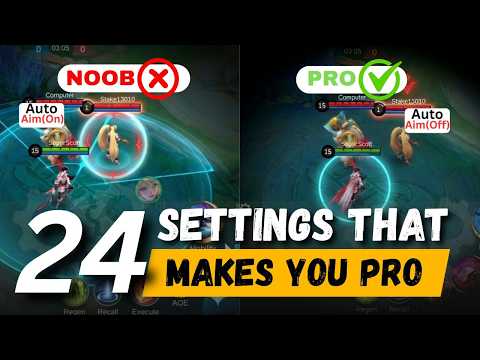
I Tested Every Single MLBB Setting So You Don’t Have To
Visor YT
12m 21s2,212 words~12 min read
AI audio transcription
Transcript source
AI audio transcription
This transcript was generated from the video's audio because no usable YouTube caption track was available. The transcript below is server-rendered so it can be read, searched, cited, and shared without opening the original YouTube player.
Pull quotes
[0:00]And somehow, you still missed, or your hero felt just a little bit slower than the enemy.
[0:00]Most high-rank players have spent hours fine-tuning things that the average player never even opens.
[0:00]The exact setup that gives you cleaner movement, better vision, and more consistent skill hits.
[0:00]So stay till the end, because the camera sensitivity section alone can change the way your entire game feels.
Use this transcript
Related transcript hubs
Watch on YouTube
Share
MORE TRANSCRIPTS


