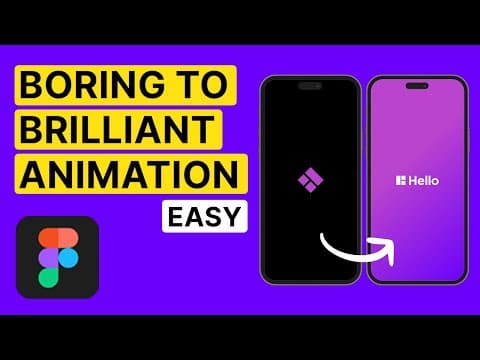
[0:00]You have already noticed those nice animations when you open an app and you wanted to understand how you can create one to impress your clients or add it to your portfolio animations.
[0:10]That's the app splash screen, and in this video, you will see how easy it is to create a good one to use. You may find the file for this tutorial in the description, so go ahead and grab it. Here are the assets to use: a logo, a text container, and a background. Now, let's select a frame. We can use the iPhone 14 or 15 Pro, it doesn't matter, as long as it is a mobile frame. The background is black and you're going to place the logo at the center of the frame, just like this. Next up, you can duplicate the frame using Command D. Slightly increase the logo size and change the rotation here to minus 135. Duplicate the frame again. And restore the original logo size to 36 pixels and zero degrees. Maintain it this way and duplicate it again. Now, pay attention to this step. It's easy, but you should focus to ensure the logo will have the right animation. In this step, we will design from the last screen to the previous one, and you'll understand why I'm doing this. Copy the text container from the assets and paste it here in the center, and ensure the clip content is active. Now, adjust both logo and the text container to be at the center of the screen.
[1:49]Copy the background gradient and send it to the background, just like so. Now, let's copy the background and text container and paste it to the previous frame. Send the background to the back and set the opacity to zero.
[2:09]For the text container, check if the clip content is still active. If so, just drag the frame here until it's invisible. This will be important to your animation, because you want the text to appear from left to right and the logo to slide to the left. Has this been easy so far? Hit the like button and comment if you find this easy to do. Now, let's prototype. Switch here to prototype mode and click and drag from this frame to the next. You want that after a delay of 1 millisecond, smart animate with a custom spring of 400 milliseconds. The stiffness of 400 and damping of 30. You may use different values if you want to experiment. It's up to you. Then, do the same from the second to the third frame.
[3:12]And from the third to the last frame, use 650 milliseconds because you have the background and you may give a little more time to do that. Now, let's click play. And that's it. Simple, and now you have a very nice way to create your own splash screens. Did this video help you? Tell me in the comments what more I can share with you. Thank you and have a great day.