[0:00]Companies House requires all relevant persons, including directors and persons of significant control to verify their identity from 18th of November, 2025. It's important to note that 18th of November is not a deadline, it's the starting point from when relevant persons must be verified before making future filings on Companies House. For example, if your next confirmation statement is due in April, 2026, that is the date by which you must be verified, but there's no need to wait, you can do it early. At G-Hawk Accounting, we're an authorized corporate service provider, so we offer this service to our clients. If you'd like our help to get this done correctly, send us a message via our website on ghawkaccounting.co.uk/contact. In this video, I'll walk you step by step on how to complete the identity checks verification using the Companies House process. The first thing is you would have received an email from Companies House with a link to verify your identity. If you haven't received that, you can scan this QR code or go to this web address, www.gov.uk/verify-your-identity-for-companies-house. If you've received an email, make sure it is genuine and it comes from Companies House. When you're ready, click the link and it will take you to that page to start the process. Second step, scroll to the bottom and click verify your identity. You will then be redirected to gov.uk login, you must use the same email address for your Companies House account to set up your gov.uk one login. Once you have your email address, click go to gov.uk login. If you already have an gov.uk login, you can click the sign in, otherwise click create your gov.uk login. Enter your email address, again, make sure it is the same one that you use for Companies House. If it's not the same, go to Companies House web filing and change it and then come back to this step. Once you've entered your email address, they will send you an email with a six digit code to ensure that the email actually works. Enter the code here and click continue. Choose your password, make sure it matches on both fields and click continue. Once you've created your gov.uk one login, you're ready to start your ID verification. Click open gov.uk ID check. You will then be asked to confirm whether your identity has been verified or not. In most cases, this will be a new process so you click no. They will give you a few options and let you know that you will require to download the mobile app for the next steps. Click continue. They'll then ask you where you live, whether the UK, Channel Islands or Isle of Man or another country. In this case, we're selecting for a UK resident, so select the first one and click continue. They'll ask you what type of photo ID you have. In this case, we're using a UK passport, so the answer is yes, and click continue. They will ask you if your passport has got that symbol. That symbol is an NFC tag, it means the data on your passport can be read. There's a chip implanted in there that is machine readable and this is necessary for this process. Most UK passports will have that, so click yes and continue. This is where you must agree to use the app, so read what it says on the screen and click continue. They will ask you to download the gov.uk ID check app. It's important that you keep this page opened because after you've downloaded the app, you will need to come back to it. Once you've downloaded the app, you come back to this very page and then click link gov.uk ID check. So, you're already started a process on a smartphone and you're wanting to link that to the app that you have just downloaded. It will take you step by step to take a photo of your passport page. The screen will go green and when it is ready, it will take a snap of the picture itself and extract the relevant information. They will then ask you to place the back of your phone on the chip to be able to scan the information on the chip and that is to match whether the information they have extracted matches what is in the chip. Once you've done that, they will ask you to scan your face with your camera for a selfie. You may need to authorize the app to access your camera and they will give you instructions facing forward and sideways until it goes green and tells you that it is ready. Once you've done that, it will give you a confirmation that it has successfully matched your application with the data that has come from the app. It will then ask you to enter your postcode to match an address. Click continue to go to the service. And then it will check your details to match the address you have given to the records it holds on a profile for the person who has issued that passport. In this case, the UK government. If it's able to match both the identity on the passport and the address that you have provided, you will receive a confirmation that the identity verification is complete and you will see on the screen your Companies House personal code, which is an 11 digit code. You must keep this safe because you will be required to use this code to link all the companies that you are a director of or you are a person of significant control on. Hope you found that helpful. If you have any questions or need our support in verifying your identity, do get in touch with us on ghawkaccounting.co.uk/contact. Thank you for watching.
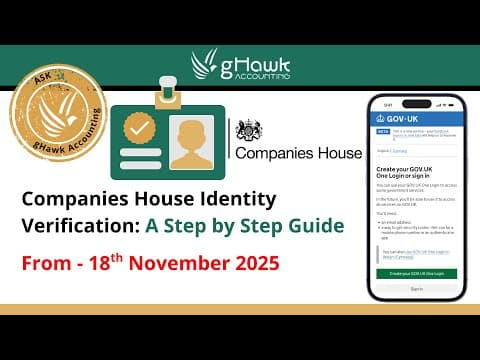
Companies House Identity Verification: A Step-by-Step Guide for UK Directors
gHawk Accounting
8m 10s976 words~5 min read
Auto-Generated
Watch on YouTube
Share
MORE TRANSCRIPTS