[0:00]In this video series, we'll be making this low poly well, and you'll be learning a whole range of modeling techniques along the way. This series is suitable for beginners but not complete beginners. If you're completely new to Blender, then check out my complete beginner's guide, link in the description. Also, if you like my approach, then check out my comprehensive courses and get my beginner bundle for only $30. All links are in the description. So, I'm in Blender 4.2.1 and my screen cast keys are down the bottom here. And I'm going to start with the default cube, and we'll use that as one of the stones in the bottom of the well. Before we start changing that, I will come across to the outliner on the right hand side and just hide the camera and the lights so they don't get in the way. Also, I don't need the timeline at the bottom. You don't have to follow along with this, but I'm just going to get rid of that by going to the bottom left corner, left clicking and dragging over the timeline with my 3D window to get rid of that. And that gives us a bit more space. Okay, so with the default cube, I'm just going to press N on my keyboard and go up to item so you can see all the transform details here. They'll become important in a second. I'll come on to the front, and I call this at the front because if you look at the Cartesian coordinates at the top here, the positives of each axis are highlighted with a letter. Positive X, positive Z and positive Y going away from us, so this is front view here. And it's worth keeping that in mind because most people will model across the X-axis. Because all the defaults are kind of across the X-axis. But for now, I want to scale down my cube, so it's a suitable size for a stone at the bottom of the well. So I'll press S to scale, to scale it right down to something around 30 cm. And you can see the dimensions over here. Zoom in a bit and I'll scale in the X. So it's a sort of long stone like this. Now, it's worth pointing out that the scale is non-uniform at the moment. And Blender takes this into account when we're editing our shape. So if I add things like modifiers, it will actually take this into account when modifying my shape. That can actually get a little bit confusing and generally speaking you always want the scale set to one when you're going into edit mode. To apply all the scale that we've done, we can press control A, and you can find that under the object and apply menu here, and we can apply the scale of this object. And notice it all resets to one. Now when I go into edit mode and make changes, it will act as I expect. What I will do is just go to front view and bring it above the floor. It makes it easier to line up objects later on. And middle mouse button to go back into perspective view. I'm going to press tab to go into edit mode, or that's edit mode up here. And I want to give this stone a chisel look. To do that, I can bevel all the edges. So with everything selected, press A if you need to select all. I'll go across to edge mode, and with everything selected, I'll hold down control and press B, and now I can bevel my stone like this. And it gives it this nice kind of rounded look. You can find the bevel command down here, but it's much easier just to press control B. What I also want to do is give this stone a kind of wobbly distorted look, so I'm going to add a few loop cuts. For that, I press control R with my mouse over the shape, and I can move my mouse around to put the loop in a different position. Going to go down the middle here first. You can also use the wheel to create two loop cuts like this, and I'll left click. Once you left click, that applies them, but asks you where you want to put them, and you can move your mouse side to side to place them somewhere, or just right click to cancel any movement, and it will set them in place there. So that's kind of left click, then right click. I'll do that once more on the side down here. So control R, left click, and then right click to cancel any movement. And maybe one across the middle as well. Control R, left click, then right click. Okay, so that's given me some topology that I can move around and make this a little bit more wobbly. So now I'm going to go to vertex mode up the top here, or that's one on your keyboard for the shortcut. And I can go in and start moving these around into random positions just to add some variation. Or, what's much easier, is select all and go up to mesh, transform, and then randomize. Now that's far too much, as you can see there, but I'll go down to the randomize option down here. The amount is currently set to 0.01. If I change this to 0.001, you can see that's given it a bit of wobbliness, but not too much. I can test out 0.002, but I think 0.001 is perfect. Just a little bit of variation in the shape like that. Okay, so you might want to pause the video here, catch up with me creating the first stone. Okay, so we need some variation of this stone. So I'll go back into object mode with tab, that's object mode up here. I'm going to remove the menu on the right hand side by pressing N. Go to front view with one on my Numpad, and shift D to duplicate. You can find that under the object menu, duplicate objects. Shift D. So shift D and then I'll tap X to move it across in the X-axis. So it's right next to the other one just there, and I want to change its shape slightly. So I'll go into edit mode, I think I'll make it shorter than the other one, so maybe half the size. So I won't need as many loop cuts. So I'll go to the edge menu again. Alt left click on one of my edge loops. So holding down Alt and left clicking, selects an edge loop like so. So I'll Alt left click on one of them and press control X. So that's dissolve edges, as you can see down here. I'll just undo that and explain that slightly. If I press X for the delete menu and delete the edges, you can see it actually deletes the edges and faces around it. So control X, if I go to the delete menu again is dissolve edges, and that gets rid of the edges, but doesn't destroy all the faces around it. So now I can select these end edges here and bring them. But if I box select like this, I'm only getting the front ones like so. We go back to front view. What I need is to be in X-ray mode ideally. The shortcut for that is Alt Z. So if I press Alt Z, we can see the background edges and I can select those. G to grab in the Z-axis, and move those across like so. I'll just add a little bit of randomness, so I'm selecting and moving around. Maybe I'll distort these ones slightly and bring these ones in just so there's a bit of variation. And let's tab back into object mode. Alt Z to go back into solid mode, and we've got two stones now. What I will do though is press R, X, 9, 0 to rotate it around the X-axis, the one going across here, 90 degrees just so it's slightly more different to this one here. Okay, so again, pause the video, catch up with me creating the second stone. And for a challenge, I want you to create a smaller stone on the end here. Okay, so hopefully you got an idea with that. I'll go to front view, Shift D to duplicate. Hopefully you remember that. Bring that across to the side here. Maybe rotate it around, so R Y this time 90 degrees. And it's taller than the other one, so I'll just bring that in and scale in the Z. So S then Z. So it's fairly square there. I might bring it in a bit further. So scale in the X, so it's around there. G then X to move that across. Let's go into edit mode, and we probably don't need this loop cut in here. So Alt left click and control X to dissolve, and there we have three stones. I think that's working nicely. So what I need to do now is go to front view and start duplicating these stones. So you got a nice long line of stones that I can turn into a circle. So I'll select them. Shift D and then X, bring those across. In fact, we'll randomize them a bit. So I'll bring this one in to here. You can overlap them slightly, that's absolutely fine, and in fact, it's slightly preferable in some ways because then you don't have any gaps in between. So I'll move this one across slightly. Each time I'm moving, I'm pressing G then X, so they only move on the X-axis. And if I zoom out a bit, you can probably just see the grid has big lines and little lines. The big lines are 1 m, and we might want to go to about 5 m across. If I press G then X, move that across slightly. I want to go to about 5 m. So I'll duplicate this one and bring that across. We can always add more if we need to. We need enough to create a circle out of these. Okay, so make sure there's not too many big gaps between them. So I'll just adapt these very slightly. Remember you can select a few and move them across. And they're all overlapping very slightly and all in a line like this. That's great. I'm going to select all and press M to move to new collection, and call this selection stone base one and create. And what I want to do is duplicate all of these, so Shift D, and then Z just to move it up out the way. And I'm going to move this to a new collection, stone base one originals. And create. The reason I've done that is because what I'm about to do is what's called destructive modeling. I'm going to join all these together, but it's a really good idea if we have the originals here, so we can go back to them if we want to. So what I'll do is I'll go up to the outliner on the right hand side here. Just minimize these. I'll create a new collection. I'll just bring this out slightly so you can see the new collection button there, and I'll call this spares. I always have a spares collection, and the stone base originals, I'll put those in the spares, and I'll hide the spares in both the viewport and the render. So that's not only in the viewport here, but it's also when I go to render later on. And basically, I'll be putting lots of things in the spares collection and hiding them just so I can get back to them if I need to. So with the stone base one, I can select all of those by right clicking and select objects. But notice I haven't got an active object as it's known. They're all orange. If I shift left click, one of them becomes the active object, and that's how you can change the active object, which is highlighted in yellow. It doesn't matter too much which one's the active object, but you must when you're joining things together, have at least one active object. So make sure one is highlighted yellow. So now when I press control J to join, and you can find that in the object menu, join just there. They've all joined to the active object at the end here. Can you see the object origin at the beginning there. That's for all these objects and they are now all one object if I press G to grab. Now I can add my deform modifier to make this into a circle. I'll just come around to this sort of view here so you can see what's happening. And go to the modifiers down the bottom here, modifier properties. Click on that and add modifier. It's under the deform as you can imagine because it's a simple deform. You can however, just type in deform and choose simple deform there. And you'll notice it's twisting it around the X-axis at the moment. And that's what's called a twist just here, and the axis is the X. What I want though is the bend. But again, that's bending it around the X-axis. So again going along this way, we want it to bend this way. So I'm looking down the Z-axis now, so we want it to bend around this way. So I should be able to change this to the Z and it starts bending around this way, which is great. Now this will only work if your object is aligned across the X-axis here. Otherwise you might have problems, but I'll just hide this for a moment. You'll not only need to rotate it, but you'll need to press N on your keyboard and make sure your rotation is applied. So it thinks its natural rotation is lining up across the X-axis. We do that in the same way we did before, so again, with this object selected, control A and apply the rotation. If you lined it up across the X-axis, you don't need to do that because it's all set to zero already. So now when I bring back my bend modifier with this button here, the display modifier and viewport button, we've now got a bend on our object. Now it's not going all the way around, we can change the angle and increase that to 360 and it will bend all the way around to the start again. We've got a nice looking well base there. So you might want to pause the video there, catch up with me, making sure you've got your circle of stones. Okay, so the quick way of creating the well base is to duplicate this. So Shift D to duplicate in the Z-axis and bring it up. But obviously, the stones are exactly the same, so we want to rotate them. So I'll press R then Z. But unfortunately, it rotates around the object origin of course. So I'll undo that movement just by right clicking. If I go to top view and move my 3D cursor by pressing Shift and right click, so it's right in the center there. I'll zoom in a bit, so we can see that more easily. Probably around there, isn't it? And I'll press N on my keyboard now to get rid of my side panel. I want to change my transform pivot point, which at the moment is in the object origin just there, to the 3D cursor. And we can do that up the top here. So transform pivot point, and I can change this to 3D cursor. So now I can press R then Z and it will rotate that around, and it looks different to the bottom one now, which is great. I also need to scale this in slightly, so I can have a bigger base at the bottom, and then slightly thinner in the middle and then bigger at the top. So I'll press S and scale that down. I want to scale all the stones down slightly, but they are going towards my 3D cursor, which is lower down. So I'll just press G then Z to move them back up, holding down shift, so it's in smaller increments. So I've got a new row just there, and I can press Shift D in the Z and move that up. R then Z, and it's still using the 3D pivot point. Rotate that around slightly there. And then I think I want one more that's a big one again. So I'll just duplicate this one. Shift D Z to move it upwards. I'll go to front view so I can see it more easily. Scale it down slightly, so it's about there, I think. And G then Z, move that up. And of course, rotate it around. And we've got our well base just there. Now what I did for my one was I adapted my original ring and added some small stones in there and some slightly bigger stones. So I ended up with something a bit more like this as my middle row. You might want to do that if you want a bit more complexity, or you can keep it simple like I am here. But do remember if you are doing that, you might want to change your pivot point back to the medium point, which is the default. Lastly, I'm just going to rotate this one very slightly, just so it doesn't line up too much. I think that looks great. Now one more thing I did do to add a little bit more higgly pigglyness to my stones is to add a decimate modifier. So with any of your loops selected, I can go across to add modifier, and again, I can type in decimate. This is under generate, and you can see that there. Generate decimate, and that adds a decimate after my simple deform. So we'll do the simple deform first, and then start decimating them. And I can bring the ratio down and watch what happens to my stones. They become a bit more jaggedy. Basically, what it's doing is reducing the face count. So if I turn this off, you can see I've got more faces there. And on again, you can see it's reduced the faces. And it adds a little bit more variety in my mind to the shapes. And I quite like that. You can go as far as you like. Maybe something like this adds even more wobbliness to them. So about 0.37 looks quite good in this particular case. And I can copy this modifier to the other ones by selecting them all and making sure this one that I've added the decimate to is the active object. So if it's not, you can shift left click to change the active object, and then control L is link transfer data. You can find that under the object menu, link transfer data, and I want to copy the modifiers. And you can see they will got this wobbliness to them now, which is really great. So I think that's a really good starting point. So make sure you've caught up with me, and of course, that you've saved your work ready for next time.
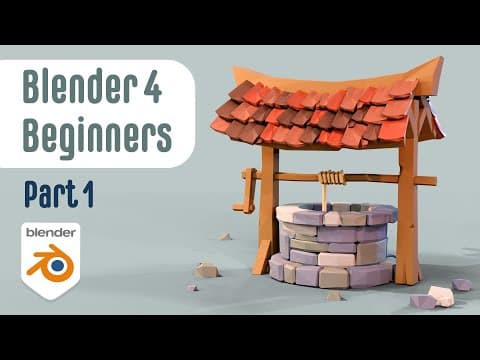
Beginner Blender 4.2 Tutorial: Modelling a Low-Poly Well - Part1
Grant Abbitt (Gabbitt)
15m 30s3,284 words~17 min read
YouTube auto captions
Transcript source
YouTube auto captions
This transcript was extracted from YouTube's auto-generated caption track. The transcript below is server-rendered so it can be read, searched, cited, and shared without opening the original YouTube player.
Pull quotes
[0:00]In this video series, we'll be making this low poly well, and you'll be learning a whole range of modeling techniques along the way.
[0:00]If you're completely new to Blender, then check out my complete beginner's guide, link in the description.
[0:00]Also, if you like my approach, then check out my comprehensive courses and get my beginner bundle for only $30.
[0:00]And I'm going to start with the default cube, and we'll use that as one of the stones in the bottom of the well.
Use this transcript
Related transcript hubs
Watch on YouTube
Share
MORE TRANSCRIPTS


