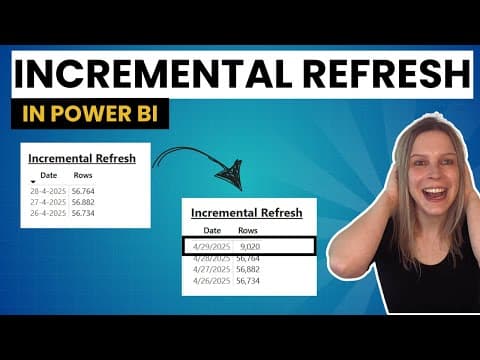
[0:00]In this video, I want to show you how to do an incremental refresh in Power BI and of course, also tell you what it is. Because incremental refreshes are super handy. So, let's say you work with a lot of data. Like every day there are hundred thousands of new rows in your data and when you load this data into Power BI, you don't want to load like every night all the data you have. Let's say you have three years of data, you don't want to refresh it. And even more when your data doesn't change anymore, it's just historical data, so why would you load it over and over again? That's not wise performance-wise, but it's also not really scalable. And that's where incremental refreshes come in handy. So, for example, we look at this table and this table is really, really small, I know that, there's just three days in it. And now instead of that we load all the data from these three days, we see there and the data of today, I just want the data of the last day to be added to that table. And that's where incremental refresh comes in. So, before we go into Power BI and I show you how to actually configure it, there are some requirements. So, not everyone can use incremental refresh. First, you need a license for it. So, Power BI Pro, Premium, Premium Per User or an Embedded License. If you want to use real-time data with Direct Query, you need a Premium License. And super important, your data source, so the data that you're getting in, it needs to have a date time column. And that's so important because that column is actually used to create some parameters that are then used again for the incremental refresh. So, you need to have one column in there that that has a date time format. So, let's go into Power BI. I will show you how we can configure this incremental refresh. Let's say we have a table here. This is something I already created. I have a certain amount of rows that are added to that table every night. So, we see there are like 56,000 rows added every night, not a massive amount of data, but I don't want to reload all that data every night. That doesn't make sense, the data doesn't change anymore, so why would I do that? So, to get started, we need two parameters, Range Start and Range End. And we need those to develop our model and to get this basic data that we want in our model. Now, where we create them, you go to Transform Data, and I see my table where I want to have the incremental refresh, this is this one. And I now need to create a Range Start and Range End parameter. And to do that, you can go to Home, Manage Parameters, and then new parameter. And there you could say, for example, Range Start, I already created this one here, and it's a date time, and there I fill in the first date, like the range start that I want to have. And then I create another parameter where I have the Range End, which is this one. And this will be initially used by Power BI to give me like this basic data that you saw in my table. And this will not affect our incremental refresh later on. So, when we are using the incremental refresh, you will get data outside of that current value of the range end. So, you don't need to be concerned about that, but we need to configure this to get our begin date. So, when I configure this, the range start and range end and click OK. And then I go to my table, the incremental, and you see it's really a basic table there, I didn't do a lot of formatting or anything. Now, we need to use these parameter in our date time column. So, I click on my date time column, go to date time filters, and custom filter. And there I can say how I want to filter my rows. And normally, when you look at this, it asks you for value that you can type in, but you can say parameter, it's an option here to say parameter and then you can select the parameter you want to use. So, in our case, it's is after or equal to range start and is before range end. So, we are using the two parameters that we just created to get an initial filtering on our data. So, I click on OK. And now if I click on close and apply, this will be closed and loaded into my model. So, now we have our parameters. This does not automatically implement incremental refresh. To do that, we need to do something else. Let's go to our model view and I have my incremental table here. Now, what we need to do is click on the three dots or right-click on the table name, click on the three dots here, and click on incremental refresh. And this is where you can actually configure the incremental refresh. This only works when you created the parameters before, so you need to configure them.
[5:15]So, the first step is to select the table where the parameters are included, and then the second step is to go set import and refresh range. And here Power BI actually asks you which data should be archived. And this is basically asking you how long do you want to keep your historical data. And then you also define the refresh period. For example, I only want the last day to be refreshed and added. And then you have some optional settings, so you don't need to click on them, but you could click on them. The first one is, get the latest data in real time with Direct Query. This is only possible if you have a premium license. And then we have only refresh complete day. So, this is a kind of self-explanatory, it gives you only the data if there's a full day of data there, so you get all the data of that day and not partially. And then we have detect data changes. And if we click on this, you see we get the option to select a date time column, and it will only refresh the data if there's a new value in there. So, this means actually, like if there was no data yesterday, Power BI will not even try to increment the refresh because there's no change detected. And then here at the bottom we get a review and apply of what we just selected. So, I said I want everything archived seven days before the refresh date, and I want incremental refresh one day before the refresh date to the refresh date, so the last day. You see, if I change, for example, 7 to 14 here, it will also change that here. And if we would say, get the latest data in real time is direct query, you also see that this is added here. So, you get a visual overview of what you just selected, which makes it very easy to check if what you're doing is actually what you want to do. And then you can just hit apply. And then after you hit apply, what we need to do now, to make this work is we go and publish it. So, we click on publish, we select a workspace where we want to publish it to, and then Power BI will publish it. After we publish it, we can go into Power BI in the online environment. So, I go to my workspace and here we see my report, I just published it, my semantic model. Now, the first refresh should be manually. So, now when I click on refresh now, that's the first time we do it manually. Before I refresh, I will show you what we have at the moment. We have this table and we have the date and the rows loaded in and this is actually yesterday. And now I hit refresh now, the first refresh can take a little longer and subsequently they will be shorter because only the new data is refreshed. And now once I hit that refresh, I see I actually have data of the 29th here. So, of the current day. So, now we could go to our semantic model and say, we want scheduled refresh that should be faster because you only get the new data in there. You see, it's quite easy to implement this. You create the parameters, you filter the table based on these parameters, and you configure the incremental refresh. You tell Power BI how much data do I want to keep, which data do I want to refresh, do I want to get full days or partition data, and once you set that up, you publish it and you refresh it, it will be in Power BI. So, this is awesome, but I also want to talk about some limitations here, because incremental refresh is awesome when you have these big amounts of data and you only want the newest data to be loaded. However, there are some things you need to know. Once you publish your model and your report to the Power BI service, you can't download that model anymore. If I click on my model and I click on download this file, I will get an error message. You can't download this file because the data set was altered through incremental refresh. Also, if you go to your Power BI file that we had and you publish it again, it will overwrite everything that has happened up until that moment in your Power BI report. It will reset everything. And then if you work with really a lot of data, something that's important to know is there are actually refresh timeouts. For premium, that's five hours, and for pro, that's two hours. So, they also apply to incremental refresh. If the refresh takes longer than that, you will time out even if it's incremental. And lastly, if you work with real-time data and use Direct Query, you need a premium or a premium per user license. You can't do that with a pro license. So, after you publish, you can't download the model anymore. You can't publish again, it will reset, or you can, but it will reset everything. There are timeouts they still apply also for incremental refresh, and if you use Direct Query, you need a premium license. So, summarizing, incremental refresh is really, really, really powerful. It's really handy, especially if you work with large amounts of data, and this data is growing every day. In the long term, you don't want to refresh and load all the data every day, it does not make sense. This maybe works at the beginning, but you will see, the more data you get, the bigger your data set will get, the refresh times will increase, and it's just not scalable. So, if you work with a lot of data, make sure you use incremental refresh to actually only get the data that you need. I hope this helped. I will put the link to the official Microsoft documentation in the description. Because there's much more information to find. I tried to keep it short. I tried to keep it simple. There are also all kinds of advanced options for incremental refresh, they you can also find them in the documentation. Please let me know how it works for you. If you have any questions, let me know.