[0:00]Modeling exercise M1-1 with the focus. User interface. Block and chamfer. Zoom, pan, rotate.
[0:11]In the first exercises, you will learn how to use the user interface. Every step and every click is explained in detail. The parts themselves are initially kept as simple as possible. You can download a drawing of the part in PDF format for printing. Or you can open it on a second screen. User interface.
[0:37]The commands in NX are split into tabs.
[0:43]The tabs are split into theme groups. Each group shows the most recent commands. The button to the right shows more commands.
[0:58]By double clicking the top tab, you can hide and unhide the tabs.
[1:05]By clicking the full screen button, you can hide all tabs. The commands will be visible again after a click to the top bar. This is helpful for presentations or if you work on small screens. By clicking full screen again, all tabs and navigators unhide again. The permanent display of the navigators can also be deactivated. Click on the resource bar options and deactivate the pin open option. Now the navigators are only displayed after clicking on the tabs and hidden again after clicking in the graphics window. Generating first object. To now create the first simple object, you use a simple command, the block. In the base group, click more and then click block. The options of the command will be displayed as such a list. Correct inputs will be marked by a green check mark. Since the command is preset to an origin at zero, you already have a green check mark here. Of course, you can change the origin by clicking point dialog, but this is not necessary for your first try. There are three options to create the block. By clicking show shortcuts, you can select the options directly instead of always clicking the dropdown menu.
[2:47]NX keeps such settings for the next start of the program or command. Value inputs. Another look at the drawing. Input values for length, width and height. Press the enter key after entering a value and press the tab key to jump to the next input field. Now a hint for countries using the metric system. As decimal separator for decimal places, you need to use a dot. A comma leads to an error warning.
[3:22]If the number pad on your keyboard writes a comma, you can use the freeware patch keyboard to change the keyboard to a point. Till then be sure you use the dot as decimal separator. After you put in all values, hit okay.
[3:40]Zoom, pan, rotate. Now, after you created the first volume, you can zoom, move and turn it using the mouse buttons. Zoom by using the scroll wheel of your mouse. Move it by pressing and holding down right mouse button and scroll will simultaneously while moving the mouse. Rotate by pressing and holding the scroll wheel while moving the mouse. You can use the command zoom, pan, rotate from the user interface as well. To activate these, click border bar options and then click view group. The bar is very small by default. But you can quickly change this here. Select the icons tooltips tab and choose the next size up for this bar.
[4:48]Right clicking in an empty area of the graphics window also displays these commands.
[4:56]Orient view.
[5:00]The orientation is also changed by selecting one of the faces of the cube.
[5:07]And by selecting the axis, the model can be rotated.
[5:21]For a full screen zoom, just double click any free space in the graphics window. The full screen zoom has got an invisible side effect. NX corrects the space to calculate. If big parts exceed the space, the part might not be shown on screen completely. As a test, I change the length of the cube.
[5:46]The block is no longer displayed correctly because it extends beyond the space to be calculated. By using full screen zoom, the space to calculate will be adjusted and the part will be displayed correctly again.
[6:09]Also interesting is the command snap view.
[6:16]If you approximately aligned a volume body, you can precisely align it by using the command snap view.
[6:27]You can also use these often used commands by hitting the displayed keyboard shortcut.
[6:37]Creating chamfer.
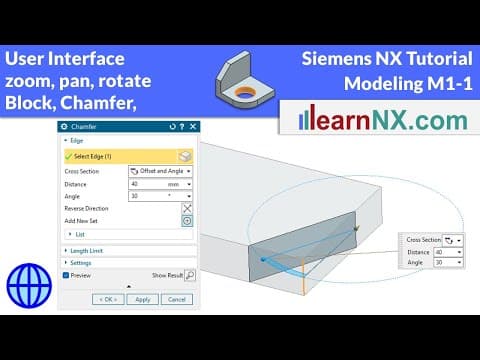
[6:42]In the next step, you generate the chamfer. After starting the command, NX displays the selection group. Select single edge to select only a single edge. You will get to know the other options in the next few exercises. Three different options are offered under cross section. Symmetric for the standard 45 degree chamfer. After the choice of an edge, a handle is available by which you can change the value in the graphics window dynamically. Click and drag the arrow head. Clicking apply will create the chamfer, but the command will remain open.
[7:29]Asymmetric for chamfers with two different distances. After choice of an edge, there are two handles available by which you can change the value in the graphics window dynamically.
[7:48]The active handle changes its color while doing this.
[8:00]As a third, offset and angle. Again, after the choice of an edge, there are two handles available.
[8:11]The arrow changes the distance and the ball changes the angle.
[8:19]By clicking reverse direction, you can invert the angle or length reference. Click okay to create the chamfer and close the command.
[8:33]I can undo the steps with undo.
[8:41]Start the command again and select the edge for the exercise. Choose the offset and angle option as the cross section and enter the values. Don't forget to press the enter key. Only if you press enter, the value will be saved by NX and the preview will be refreshed. It does not matter if you enter the values or use the handles. Just do as it fits you best. Changing chamfer. Double click the surface of the chamfer. By doing this, you get back to the menu and can change the settings as you like. Saving part. In the tab of the part, right next to its name, there is a reminder showing the part is not saved yet. To save now, click the disk. The file is saved and the reminder disappears.
[9:38]Finding commands. Another thing to the end, you can search and start a command by using the search bar. For example, the block command. You can start the command directly below, and you can find more information above. Then select commands in the search window and check whether all options under settings are set. If you move the cursor over the block, NX shows the path in the ribbon bar. And here the search window can be closed again. In the next video, the edge blend and the whole will follow. The whole command is very extensive, but you will get to know it step by step in the next few exercises. See you in a moment.


