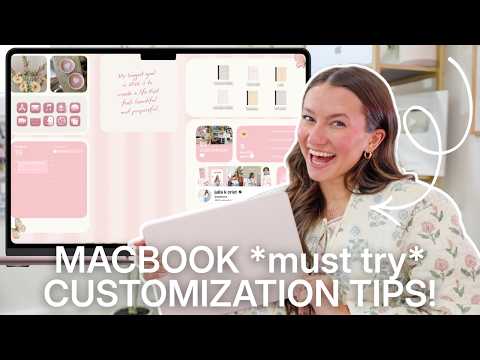
[0:11]This is very satisfying to me. You're making me very happy.
[0:17]This is looking so good.
[0:22]Hello everybody and welcome to it. Today we are going to be customizing our MacBooks to be cute and aesthetic. I don't know if you guys are new to my channel, but this is kind of what I do. This is what I love. This is what I enjoy. And it has been like six years since my first ever MacBook customization video and I really wanted to revamp it with my best customization tips and there's a lot of new things that you can do now to customize your MacBook. So this is long overdue. I was so young in my first ever video. Personally for me, I am much more productive on my laptop and in my digital space whenever it's actually cute and organized. So today I have a ton of tech tips to show you to make it a really just aesthetic place to be. So with that being said, today's video is going to be get my MacBook ready with me, cute setup tips to make it super just pretty and customized to you. And then the next video in this little series here will be a video on my best MacBook tips and tricks and hacks and Apple ecosystem tips that you can use with your MacBook. So make sure you subscribe so you can stick around and watch that video when it releases. But we're going to go ahead and get started today. I'm using the brand new MacBook Neo. It's so cute. The blush pink is perfection. But anyways, as we get going, if I start talking about a customization tip and you do already know it, I'm going to timestamp it down below in the description, each tip so that you can easily just skip over to the next one if you want to skip around. So that'll be down there. But yeah, let's go ahead and get right on into this. Also, I had this lovely coffee that I made for this video to sit down with. It was stunning, perfect, beautiful but I've already drank half of it since I was setting up my camera. It was that good, but this is your sign to pause this video and go grab a fun beverage before we start so that you can really romanticize this nice little customizing session that we're about to have. All right, here is what I'm currently seeing on my MacBook Neo screen. First, we're going to play around in the settings and do a lot of the really quick changes and then we'll get into the actual like deep customization that'll take some time. So first things first, let's customize our dock down here. We're going to start with dragging and removing apps that we don't want to see down there. I like to do this because like honestly a lot of these I don't use on a day-to-day basis, so I can clear those out because I know I'm not going to be clicking on them. So to do this, you can literally just click and drag and then swipe off onto the home screen, like that, very simple. Don't make phone calls. All right, I have removed the ones that I don't really use and now I actually want to add one. So I'm going to go to apps. Okay, I actually have a few. I'm going to drag Final Cut Pro down. Of course, drag The Sims down and Canva. There we go. Okay, I think that's pretty good. So now those are all down there. Perfect. But we're not done yet with the dock customization. Let's go into our settings, scroll down to Desktop and Dock. Here you have a lot of options, so first off, you can have the dock at the bottom or the left of your screen or the right of your screen, kind of crazy. I'm going to go with bottom. I also like to click right here where it says automatically hide and show the dock because I don't usually like to have the apps showing all the time. So as you can see, I just dragged my cursor down and it shows up again. That's how I like to have it and then on top of that, I like to turn the magnification up. I liked it like maybe around here and as you can see it like highlights the apps as you pass over them. And of course, you can actually choose the size too so you can make it smaller, larger, whichever you want. All right, when I first set up my MacBook, I didn't really pay much attention to what I made my icon here and I really wanted to be something cute. So I'm going to click and just click edit. And then I think so many options, of course, but I think I want to make a Memoji. So let's see what we can get her looking like. I'm going to do this hair. Oh yeah, we can even add some highlights. I feel like my childhood of playing The Sims and trying to make my Sims look like me has really trained and prepared me for this moment because once you do that so many times you really start to know like what eye shape and eyebrow shape work best on you and make you actually look like you. Oh my gosh, she is so cute. I'm trying to give her some lipstick right now. Oh my gosh. Whoa, whoa, we have some new outfits. Why do I always just choose the basic t-shirt? I didn't know I could go like this. I could choose the shade. All right, now that we have her made, we're going to go to a pose. I feel like I always like this heart one. Oh, that is fun. Yeah, we got to do her. All right, and then of course I have to change the background color. Oh okay, that's so cute. She's just so cute. Okay, save. Okay, how adorable is that? Now whenever I open up my Mac, it'll be her looking back and sending me a heart, so very cute. All right, next tip is going to be something that will help a little bit with our eyesight and just staring at screens all the time. So you're going to go to displays, click night shift. Then right here where it says schedule, I like to do sunset to sunrise, so it'll automatically shift the colors of your display to be warmer and of the color spectrum after dark, so it'll help you hopefully get a better night's sleep. So I like that. Done. All right, then the one right down below it where it says menu bar, you're going to click that. Scroll down to where it says battery and then click battery options. And I like to toggle on show percentage just so right up there you can always see what exact percentage your laptop's at without having to click on it. So, let's click done. Perfect. Okay, and then while we're still in settings again, we're going to go to accessibility and in here we're going to change the color of our mouse just because I think it's fun. So you'll go to display, scroll down to this area where it says pointer, so you can make it larger if you'd like. So I might make it just a little bit larger so that you guys can see it a little bit better during this. Then you could change the outline and the fill color. So I'm going to try and change them both. I find a fun pink maybe. I think I'm going to click and drag it right there so I can decide when I go over here. I can just do the same color. Oh, what do we think? All pink mouse. Maybe the outline should just be white. Oh, that's cute. Okay, I like that. Perfect. That's kind of fun and cute. Maybe I'll make it a little bit larger. Okay, of course, one of my favorite things ever is going to the appearance tab. This is peak customization. Here we can do all sorts of fun things. So, you can obviously decide between light or dark mode, if you ever questioned your decision again during your initial setup. I usually prefer light mode. And then here you can also choose a different look for your liquid glass, if you kind of struggled to see the clear a little bit too much sometimes. But what I mostly wanted to get to was this theme area. So it's actually used to be called accent color and now it's called theme. And you have all these colors to choose from and when you click one, it changes kind of like these little highlights and things. So there's red, there's pink. I want to do the one called This Mac because it's like kind of color match to be what would look good with this color Mac, I'm pretty sure. So that's super cute. And then down here, where it says icon and widget style, this is where it gets very cute because here's our default and as you can see, all our apps down here are like the default colors. You could do dark mode. As we saw, all the settings already changed and my apps down here, dark mode or clear. We got some liquid glass going on and now they're all clear, but my favorite one is do tinted. Look at the pink. Oh my gosh, look how cute they are down there. So right now it's obviously already set to like the This Mac color, but you can click right here and do choose color. So yeah, it's matched to the hardware, which is the color of the outside of the Mac, but you can then click again on choose color and right here is where you can do literally any color you want. I'm going to hope for like a light pink. Yeah, that's cute. Okay, perfect. Obsessed with how it's looking so far. And then one more little settings tip to make your life easier. We're going to go down to the Finder app and click on that. Then from here you're going to go up to the top where it says view and then scroll down to show path bar, click that. And then down there it's going to just show you different like where your folders are. It's kind of helpful sometimes. I get a little lost in where I am on my MacBook, so that's just a little extra organization tip right there. All right, now that we have organized our MacBook, we're going to do the cutie customization part. So first, let's start with a screen saver. Now, your Mac does come with a bunch of cute screen savers, but one of my favorite tips is to actually download this super cute one offline. You literally just look up Flip Clock screen saver and it's this Fliqlo one. I've used this one for like six years now. It's so cute. And sometimes on these websites you have to be really careful on like fake like ads acting like it's where you're supposed to be clicking. What you need to do is find this little hamburger menu and click on that, then scroll and make sure that it is this one right here. Download, allow. So then go to your downloads and click on that little thing right there and double click right there on the settings and install. All right, once you've done that, you can eject the little installer right there by right clicking on it and clicking eject. Then head back to your system settings and find wallpaper. Then from there, you're going to click screen saver and it'll obviously already have one set. But what you're going to do is scroll all the way down to the bottom to the other section and then scroll all the way over and this is where the downloaded one should be, so you'll click that. Okay, perfect. You can also click on the options and check like different formats and everything if you're ever worried about that, but perfect. Once we've set the actual screen saver, what we're going to do now is go into this little search bar and search hot. And right here you'll find the hot corner shortcuts. This is very fun. I like to do this. My fun little Mac tip is to then click one of these with the little minus on it because that means that they're currently blank. You're going to click a corner. I like to do the top left. And right there you're going to select start screen saver. This is called hot corner so whenever you drag your mouse to that corner of the MacBook screen, it'll actually start whatever. So I believe the bottom right is automatically always set as a quick note so it'll like bring up a little section for you to actually type in a quick note if you wanted to. But you could play around and do any of the others if you really wanted. But this is what I like to for sure have. So once you've done that, you click done. Okay, and to show you what that looks like, all you do is swipe up to that left corner that we just set and it'll be the cute little screen saver. I think this is so pretty and so aesthetic. Obviously you can download tons of different other types of screen savers. I know there are some really pretty gradient ones out there too. This one is free and super cute. I love it. All right, let's get into the customization portion. We are going to go to Canva.com to start this with the wallpaper first. When I'm in Canva, I go to create custom size. Then I did 2560 x 1600 px for the pixel sizes. All right, my inspo that I'm going to go for is this vibe right here, but obviously you can choose any single wallpaper you ever would want. I also have a bunch on my website, juliakcris.com, of different options already as well as like monthly calendar wallpapers. But I want to switch it up and do like an actual organized cute aesthetic one. So I'm going to first choose a background. Okay, I really them into this pretty little striped look lately, so I think this is so cute. Then I'm going to go into shapes and I want to add some different sections. I think I want to try this like rounded corner look. It's very like Applesque to me to have the rounded edges and corners. So, let's see. I think I'm going to make it white or this or tan, maybe. So I'll have a section up here hopefully for some widgets, another section, a bit larger. All right, I like to just duplicate it to make my life easy. I'm going to do another section a bit larger over here for I'm thinking widgets, another widget like a big calendar and then maybe folders up here. Okay, I'm thinking maybe this to start. I'm really bad at making decisions. Also adding these cute little butterflies off of Pinterest. I just think they're a fun little way to kind of romanticize things a little bit. All right, we're going to see how this all turn out if my vision is kind of visioning or not. I'm going to export this now and download it. I like to save to my desktop and we'll click save. There it is. I'm just going to right click on it and then click set desktop picture. Okay, cute. It's looking promising. All right, now that we have made our custom wallpaper, it is time to actually get it organized with cute widgets and customize it a little bit more. Let's first start with making folders and customizing those icons. So I want this little block up here to be for my folders, so I have one I'm going to rename it wallpapers because that's where I've been putting all my wallpaper. And another just fun little style tip, I like to do either all caps or all non-caps. I try to like be really consistent with the way I name my folders. So we have wallpapers. Let's do screen recordings. So I put those in there too. All right, I'm going to make a YouTube one. This is where it would be a good idea to like make a school one. I'll make a school one. I'm not in school anymore, but just for example. Make a life one and let's do an extras. Okay, drag those about to the middle. Now that we have our folders created, obviously, these are cute, but I think we can make this better. Okay, I went and I just looked up notebook folder icon and there are some really cute like folders right here. Okay, I'm obsessed with those. But I've been seeing people use like cute like composition notebooks. Like they, oh yeah, they like literally use these. All right, and now to change the folder icons, I'm going to do something very simple. All I'm going to do is right click on the Pinterest photo and click copy image. So since this is already like a no background PNG, it works perfectly for this. Then I'm going to right click on the folder that I want to change. Go to get info. Then it pulls up this really small little info page. You're going to find this little tiny folder in the top left corner. Then you'll press Command V on your keyboard and that'll change it. And oh my gosh, that's so cute. I saved these to my Pinterest if you want to try the same ones. I'm going to just repeat, copy that image. Let's do this one, maybe. Command V. Oh, yeah, this is going to be adorable. Okay, and then maybe this one and Command V. Last, I think I just wanted to do these three. We'll copy this image, get info on this. Command V. Command V. Oh my gosh. Okay, wait, what do we think? I can't tell. Is that, is that too much pink? Maybe this one instead. Copy info. Command V. Okay, cute. What do we think about that? Isn't that kind of fun? Oh my gosh, there's so many. That one's cute. Oh wow. I'm obsessed with those folder icons. Those are so perfect. All right, and now this last tip is truly going to bring everything together. And that is adding widgets. So there is one app that you do need to download. It is called Widgetwall. It's this one right here. It just makes things a little bit easier to get everything downloaded. All right, once you first open up the widget wall, it's going to put a bunch of random widgets on your laptop. So I go ahead and just right click and then click the delete button on the ones that I do don't want up there, which is like all of them. I don't mind this one right here, so I'm thinking I'm going to keep it because watch, if you just click on one of the app icons, it just opens up. It's kind of nice. I like it. All right, we're going to also delete the cats. So sorry. All right, we're going to go back up to the little icon up there at the top. Here you can see all of your options. I'm going to find the photo. I'm going to put a small one. Immediately of course pulled from my camera roll. I'm going to instead click source and then click on that and click files, then browse. And I think this flower one I found on Pinterest is super cute. Okay, do it again. Let's do a bit of a bigger photo this time. I think I want that one to go. Also, quick tip, if you go to this part where it says snap to grid, it's usually on global. If you click off, that'll make it so you can press and move the widgets anywhere you want on your MacBook screen instead of it like automatically going to the specific grid. So that's so helpful. Gets rid of the very frustrating grid. Like see how this one like automatically moves it to somewhere it thinks it would work correctly. So just a little pro tip. All right, we got to change this cat. Again. Files. Have this cute quote that I would like it to be. Oh my gosh, this is going to be so cute. All right, let's keep going. Let's go one more small photo, add that in there and again change the source. I have this cute photo of some lattes that I think would be so perfect. Okay. Do it again. I'm going to do a bit of a bigger photo this time. I think I want that one to go. Also, quick tip, if you go to this part where it says snap to grid, it's usually on global. If you click off, that'll make it so you can press and move the widgets anywhere you want on your MacBook screen instead of it like automatically going to the specific grid, like see how this one like automatically moves it to somewhere it thinks that would work correctly. So it's just a little pro tip. All right, we got to change this cat again. Files. Have this cute quote that I would like it to be. Oh my gosh, this is going to be so cute. All right, let's keep going. Let's go one more small photo, add that in there and again change the source. I have this cute photo of some lattes that I think would be so perfect. Okay. I want to do it again. I'm going to do a bit of a bigger photo this time. And I think I want that one to go. Also, quick tip, if you go to this part where it says snap to grid, it's usually on global. If you click off, that'll make it so you can press and move the widgets anywhere you want on your MacBook screen instead of it like automatically going to the specific grid. Like see how this one like automatically moves it to somewhere it thinks that would work correctly. So it's just a little pro tip. All right, we got to change this cat again. Files. I have this cute quote that I would like it to be. Oh my gosh, this is going to be so cute. All right, let's keep going. Let's go one more small photo, add that in there and again change the source. I have this cute photo of some lattes that I think would be so perfect. Okay. I want to do it again. I'm going to do a bit of a bigger photo this time. And I think I want that one to go. Also, quick tip, if you go to this part where it says snap to grid, it's usually on global. If you click off, that'll make it so you can press and move the widgets anywhere you want on your MacBook screen instead of it like automatically going to the specific grid. Like see how this one like automatically moves it to somewhere it thinks that would work correctly. So it's just a little pro tip. All right, we got to change this cat again. Files. I have this cute quote that I would like it to be. Oh my gosh, this is going to be so cute. All right, let's keep going. Let's go one more small photo, add that in there and again change the source. I have this cute photo of some lattes that I think would be so perfect. Okay. I want to do it again. I'm going to do a bit of a bigger photo this time. And I think I want that one to go. Also, quick tip, if you go to this part where it says snap to grid, it's usually on global. If you click off, that'll make it so you can press and move the widgets anywhere you want on your MacBook screen instead of it like automatically going to the specific grid. Like see how this one like automatically moves it to somewhere it thinks that would work correctly. So it's just a little pro tip. All right, we got to change this cat again. Files. I have this cute quote that I would like it to be. Oh my gosh, this is going to be so cute. All right, let's keep going. Let's go one more small photo, add that in there and again change the source. I have this cute photo of some lattes that I think would be so perfect. Okay. I want to do it again. I'm going to do a bit of a bigger photo this time. And I think I want that one to go. Also, quick tip, if you go to this part where it says snap to grid, it's usually on global. If you click off, that'll make it so you can press and move the widgets anywhere you want on your MacBook screen instead of it like automatically going to the specific grid. Like see how this one like automatically moves it to somewhere it thinks that would work correctly. So it's just a little pro tip. All right, we got to change this cat again. Files. I have this cute quote that I would like it to be. Oh my gosh, this is going to be so cute. All right, let's keep going. Let's go one more small photo, add that in there and again change the source. I have this cute photo of some lattes that I think would be so perfect. Okay. I want to do it again. I'm going to do a bit of a bigger photo this time. And I think I want that one to go. Also, quick tip, if you go to this part where it says snap to grid, it's usually on global. If you click off, that'll make it so you can press and move the widgets anywhere you want on your MacBook screen instead of it like automatically going to the specific grid. Like see how this one like automatically moves it to somewhere it thinks that would work correctly. So it's just a little pro tip. All right, we got to change this cat again. Files. I have this cute quote that I would like it to be. Oh my gosh, this is going to be so cute. All right, let's keep going. Let's go one more small photo, add that in there and again change the source. I have this cute photo of some lattes that I think would be so perfect. Okay. I want to do it again. I'm going to do a bit of a bigger photo this time. And I think I want that one to go. Also, quick tip, if you go to this part where it says snap to grid, it's usually on global. If you click off, that'll make it so you can press and move the widgets anywhere you want on your MacBook screen instead of it like automatically going to the specific grid. Like see how this one like automatically moves it to somewhere it thinks that would work correctly. So it's just a little pro tip. All right, we got to change this cat again. Files. I have this cute quote that I would like it to be. Oh my gosh, this is going to be so cute. All right, let's keep going. Let's go one more small photo, add that in there and again change the source. I have this cute photo of some lattes that I think would be so perfect. Okay. I want to do it again. I'm going to do a bit of a bigger photo this time. And I think I want that one to go. Also, quick tip, if you go to this part where it says snap to grid, it's usually on global. If you click off, that'll make it so you can press and move the widgets anywhere you want on your MacBook screen instead of it like automatically going to the specific grid. Like see how this one like automatically moves it to somewhere it thinks that would work correctly. So it's just a little pro tip. All right, we got to change this cat again. Files. I have this cute quote that I would like it to be. Oh my gosh, this is going to be so cute. All right, let's keep going. Let's go one more small photo, add that in there and again change the source. I have this cute photo of some lattes that I think would be so perfect. Okay. I want to do it again. I'm going to do a bit of a bigger photo this time. And I think I want that one to go. Also, quick tip, if you go to this part where it says snap to grid, it's usually on global. If you click off, that'll make it so you can press and move the widgets anywhere you want on your MacBook screen instead of it like automatically going to the specific grid. Like see how this one like automatically moves it to somewhere it thinks that would work correctly. So it's just a little pro tip. All right, we got to change this cat again. Files. I have this cute quote that I would like it to be. Oh my gosh, this is going to be so cute. All right, let's keep going. Let's go one more small photo, add that in there and again change the source. I have this cute photo of some lattes that I think would be so perfect. Okay. I want to do it again. I'm going to do a bit of a bigger photo this time. And I think I want that one to go. Also, quick tip, if you go to this part where it says snap to grid, it's usually on global. If you click off, that'll make it so you can press and move the widgets anywhere you want on your MacBook screen instead of it like automatically going to the specific grid. Like see how this one like automatically moves it to somewhere it thinks that would work correctly. So it's just a little pro tip. All right, we got to change this cat again. Files. I have this cute quote that I would like it to be. Oh my gosh, this is going to be so cute. All right, let's keep going. Let's go one more small photo, add that in there and again change the source. I have this cute photo of some lattes that I think would be so perfect. Okay. I want to do it again. I'm going to do a bit of a bigger photo this time. And I think I want that one to go. Also, quick tip, if you go to this part where it says snap to grid, it's usually on global. If you click off, that'll make it so you can press and move the widgets anywhere you want on your MacBook screen instead of it like automatically going to the specific grid. Like see how this one like automatically moves it to somewhere it thinks that would work correctly. So it's just a little pro tip. All right, we got to change this cat again. Files. I have this cute quote that I would like it to be. Oh my gosh, this is going to be so cute. All right, let's keep going. Let's go one more small photo, add that in there and again change the source. I have this cute photo of some lattes that I think would be so perfect.