[0:00]Making videos takes up a lot of storage space, literally terabytes. And while I do have this epic 45-drive Storinator, 200 terabytes of hard drives in there, 18 Xeon-W cores, many gigabytes of RAM.
[0:13]Heck, there's even a GPU for transcoding, hard drives, they're just not that great for video editing. I mean, sure, they can be made to work, you sprinkle a little SSD and RAM caching in there, but this NAS, it was never built for that.
[0:26]And as it's gotten fuller and fuller, it's gotten slower and slower. Fortunately, our friends over at Kioxia heard my cries and sprung into action, sending over this pair of absolutely insane 30-terabyte CM7 Enterprise NVMe SSDs.
[0:43]These are PCIe Gen5, baby, for me to build my very own high-speed video editing server and give old Bessie here a break.
[0:50]It's just that things have been really busy, and in those few months of procrastination, everything computer-related has gotten obscenely expensive.
[1:00]I think my dream editing server is just gonna have to wait. What can't wait is the YouTube videos. So I need something else to plug these into.
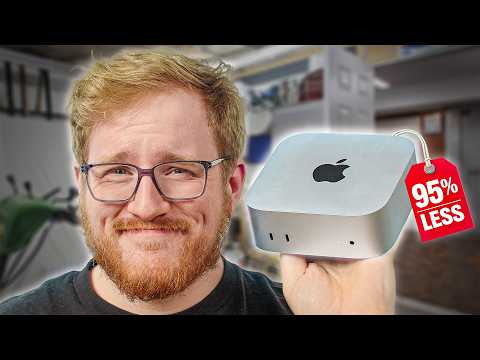
[1:08]What about a Mac? I've never used a Mac as a NAS before. I mean, I do have this Mac Mini conveniently sitting right here.
[1:14]You want me to pair that with 60 terabytes of enterprise SSDs? Huh. When you think about it, these Mac Mini's, they're so cheap.
[1:21]For $399 USD, with an M4, it's base as it gets. It doesn't have 10-gig ethernet. Oh, we don't need that where we're going.
[1:30]But what it does have is a heart of gold, 10 Apple M4 cores, 100-plus gigabytes of memory bandwidth, only gigabit ethernet.
[1:39]But it doesn't matter because we have not one, not two, but three Thunderbolt 4 ports, all of that for $399.
[1:47]It's frankly overkill if we were to plug hard drives into this, which to be honest, I probably should have started with that before jumping all the way up to these.
[1:55]Now, these aren't the actual drives we're gonna be using. These are some mixed-use PCIe Gen4 drives. These are quite stout.
[2:01]They are 6.4 terabytes, but the main story here is being mixed-used optimized. Their write speeds are way faster than the SSDs I've used from Kioxia before.
[2:11]But we're getting some 30-terabyte drives. They're in the mail right now, but I simply could not wait to try this. It's not like we need the 30-terabyte drives if I can't even get this to work anyways.
[2:21]And this is how we're gonna do it, at least in theory. I don't know how to say the name, Trebleet, Trebleet, but inside this very box.
[2:33]Oh, boy. I know, I could have done this in a tasteful manner. Is this Thunderbolt to U.2 SSD enclosure?
[2:40]And not just one of them. I've got two. I even got this freaking 25-gigabit Thunderbolt dock.
[2:47]So we're gonna be taking advantage of all three of our Thunderbolt ports. I didn't even realize, but this actually has a pass-through port. So I could probably take like two more of these and use four drives, but it would start to get kind of expensive.
[2:58]I mean, they have a Thunderbolt 4 version, but I think it's getting phased out, so this is definitely on the pricey your side. We're not gonna be able to take advantage of all of that speed, but we still have 40-gigabit or so to work with.
[3:09]So we should be able to get somewhere in the neighborhood of 3 to 4 gigabytes per second out of each of these SSDs, including the 30-terabyte drives when we get those.
[3:15]So we can have a 60-terabyte Mac Mini. I do wonder how loud this is gonna be. I mean, in the grand scheme of things, it's gonna be way quieter than a proper server.
[3:25]So I mean, I'm not gonna complain too much, I think. There's the power brick, 12-volt, 4-amps, 48-watts.
[3:31]I could actually replace this with USB-C if I wanted, maybe. Huh. Hey, look at that.
[3:36]So I mean, the cooling design I think makes a lot of sense. It's just a giant block of like extruded aluminum on the bottom there, and then the fan blows right on the SSD.
[3:44]It's just that like every commercial SSD like this is not designed for airflow from that direction. It's meant for the air to flow front to back like it would in a server.
[3:54]This is gonna be the easiest server build of my life. The 30-terabyte SSDs arrived. Woohoo.
[4:00]Give me all the terabytes. Oh, look at that. Trebleet TBT5. Let's go. Disappointment. Both of our docks are showing, but neither of our SSDs are showing.
[8:25]They might not be compatible with these docks. There's some weirdness with PCIe Gen5, certain firmwares on certain drives not being compatible with certain like U.2/U.3 controllers, so I'm not entirely like shocked.
[8:42]Let me try it in the Mac Mini. They're probably not gonna work with the Mac Mini either, but at the very least, we can put the CD6 drives back in and then I'll still have a very fast NVMe NAS on a $400 Mac Mini.
[8:54]Let's see. Nope. Uh, I feel so destroyed right now. Usually when you just plug a Gen5 drive into a computer that's only Gen4, the drive just goes, oh, crap, and then slows itself down to work.
[9:09]But in this case, it is not, but we are not lost. We will put our these ones back in and continue forward.
[9:18]Clearly, our SSDs are plenty of fast in this configuration for what we're trying to do, which is great to see.
[9:25]But for this Mac to become a NAS or network attached storage, we need to get this storage not just attached to the Mac. It also needs to attach to our network.
[9:34]And luckily for us, Apple actually includes a way to share the storage on your Mac across the network. You just go into System Settings, search for file sharing, and turn it on.
[9:44]We also need to select what folder we want to share because by default, it's just gonna share the public folder.
[9:49]So we'll go in here and select our speedy boy, and now our RAID 0 SSDs are being shared across the network.
[9:55]And to test that, I have my personal MacBook Pro over here also with another one of our fancy 25-gig dongles.
[10:03]I've connected them both together with a Ubiquiti 25-gig SFP28 cable, and then configured static IPs on both sides so that we can individually mount each Mac.
[10:12]This is not the long-term plan. We'll have to put it down in the rack in a little bit, but for now, we can at least test it and see how fast it goes.
[10:19]And then we'll click connect. Hey, look at that. You're also gonna want to hit the options button over here and enable Windows file sharing for the user that you're using. Otherwise, non-Macs won't be able to connect properly.
[10:33]But if you're like me, and you want to be able to access the files on your Mac Mini NAS when you're not home, an awesome way to do so is with today's sponsor, Twingate.
[10:41]Twingate lets you access your network remotely in a secure way, kind of like a private VPN. But unlike most of those, it's actually really easy to set up.
[10:49]You just install the Twingate connector. We'll use Docker Desktop on our Mac Mini for that. It even generates the command for you.
[10:55]And within seconds, our Mac Mini is ready to be accessed from anywhere without the security risk of port forwarding.
[11:02]I mean, check it out. I'm watching a video on my iPhone from our Speedy Boy NAS with Twingate over cellular right now.
[11:10]And now that the connector's installed, you can share other devices on your network too. You just have to add a resource in Twingate, like this cute dashboard I vibe-coded for our Mac Mini NAS, set a policy, and you can access that from anywhere as well.
[11:21]And as a Twingate customer of many years, I can confidently say that it is indeed awesome. And best of all, Twingate's Starter plan lets you invite up to five users, deploy it across 10 different networks, and share up to 20 different resources for free.
[11:36]So what are you waiting for? Head to jakkuh.com/twingate and try it out right now. What are you like, just go, man. What go?
[11:42]I've got the Speedy Boy drive up here on the left. I copied over a few more files. We got a 50-gig file here, a couple 10-gig ones.
[11:51]And then on the right is my desktop on my MacBook. I really want to see if we can saturate this 25-gig connection, which, you know, accounting for a bit of overhead, would probably put us just under 3 gigabytes per second if we're actually hitting it.
[12:04]So this is going from our Speedy Boy NAS to my MacBook. Oh, okay. It's not quite saturating it.
[12:14]I was getting 1.7 gigabytes per second. I'm only gonna be connecting to clients that are connected at 10-gig, but I don't know, I kind of expected it to go a little bit faster than that.
[12:22]Let's try going the other way. 1.2 gigabytes per second. That's actually slowing down quite a bit. Let me do some looking. Okay, so I did a little bit of perusing in the SMB settings that you can change on macOS.
[12:34]A lot of the settings that people recommend you to change in here are defaults already. Like signing_required equals no, which disables mandatory file encryption on the transfer.
[12:44]I think streams equals yes is already set to yes. The main thing that I changed was increasing the number of RSS channels.
[12:52]That's receive side scaling, which allows the file transfer to split into multiple streams and in theory, use multiple threads on the CPU and go a little bit faster.
[13:00]The default is 4, changed it to 8. Don't know if it's actually going to work or make any difference, but worth a shot.
[13:06]Let's see if it's any faster. Before we were at like 1.7 gigabytes per second. Holy shit, it actually worked! 2.5 gigabytes per second. Damn. Let's try a second copy at the same time. Maybe we can get closer.
[13:18]I think that this is probably getting close to capping out our kind of network link here. 2.6 gigabytes per second, 2.62.
[13:27]It's not hitting the like crazy speeds I'm getting from server to client on the right speed, but it's doing, you know, 1 to 1.5 gigabytes a second, which is a lot better.
[13:37]I'm happy with that, as long as it stays consistently that good. I did find some stuff online about the macOS file server not being able to handle RSS streams in high quantity when you're writing to it very well, so that might be why.
[13:50]I'll have to do a bit more tweaking and see if I can get the write speeds to be a little bit faster. But in the grand scheme of things, each individual like editing machine is only gonna ever be writing at 1 gigabyte a second at the absolute most, pretty much.
[14:04]The same when we're ingesting footage. So this is fine. But we need to test a video project and see what that's like, because that's really what this is for.
[14:13]I've got DaVinci Resolve open on my MacBook here with the Sennheiser HDB 630 video I made. Let's see how the timeline performance is.
[14:20]This is inter-frame footage, which is really not the most optimal for uh, timeline performance.
[14:27]So I suspect that part of it's hiccuping is my MacBook Pro having an aneurism over it, but I mean, other than that, it is working.
[14:36]Maybe I should have transcoded some footage. It was being a little cludgy when I first opened it, as my MacBook tried to cache some of the effects at the start here, like the rotoscoping around my head.
[14:45]But now that that is cached and rendered, I mean, this is working flawlessly. And if I switch over to the proxy media, which is ProRes, oh, look at that. Look at that scrubbing. Oh my God, wow.
[14:57]It doesn't actually push anywhere near as much data as you would think. I mean, you can look at our Mac Mini and it's like 6 to 10 megabytes per second as I'm scrubbing around.
[15:09]That's because the proxies are intra-frame, rather than inter-frame, so every single frame in that, let's say, 30 FPS video is stored essentially as like a photo rather than how it's done with inter-frame, where in broad terms, it just stores the differences between the frames.
[15:25]So really, as I swipe through here, Resolve is just grabbing each individual frame. It's really efficient in its access, but that does mean as I'm swiping around like this, it's doing a lot of random reads and writes.
[15:37]And it's handling it flawlessly. I mean, as you move it around, like it, it doesn't even pause, and it's just like, it's not even there. Look at how beautiful that is. Holy. I mean, all right.
[15:49]This is all I needed to see. That's way more responsive than my hard drive-based NAS. That's phenomenal.
[15:55]Before we go to deploy our Mac Mini NAS actually in the rack and start using it, there's a couple more things we need to change.
[16:01]First, in the uh, System Settings, we're gonna go to the Energy tab here. We're gonna enable Prevent automatic sleeping when the display is off, so the Mac Mini doesn't just go to sleep.
[16:11]And then I'm also gonna enable Start up automatically after a power failure, so that if the power goes out and our UPS dies, at least our Mac NAS will turn back on.
[16:18]The rest of the stuff in here can stay the same. You just might want to make a user. I'll I'll name it editor. Add editor to the Speedy Boy folder.
[16:27]Have read and write access, and don't forget to enable Windows file sharing for that editor user, and we're good to go.
[16:34]Cool. Now, when we map it on our new machine, we'll just use that editor user, and we'll be a little bit more secure.
[16:40]You also might be wondering if a setup like this can handle apps like a lot of other NAS systems can do, like a Plex Media Server or Jellyfin, Docker containers.
[16:49]And the answer is yes and no. For a lot of things, you can actually just install their desktop app.
[16:54]There's the Plex Media Server Desktop app. That's probably easier to get rolling than a Docker container would be for normies.
[17:02]If you need Docker, you can just run it from the Docker Desktop app, and you can set up a little interface like Dockge or Portainer, so that you have like a kind of a visual way to manage it.
[17:11]All of that is super easy to do, maybe even easier if you're not command line friendly than it would be to roll your own NAS with TrueNAS or something.
[17:19]And it is worth mentioning that while this Mac Mini is not repairable, neither are those like off-the-shelf 2, 4, 6, 8 bay NAS units that you can buy on Amazon or whatever.
[17:29]And this setup does actually have an advantage over those, at least some of them, in that it's upgradable.
[17:35]You could start with hard drives and the on-board networking and maybe upgrade to a SATA SSD or two or NVMe drives if you're crazy like me and 25-gig networking.
[17:45]The world really is your oyster, which I guess brings the question, is this the most cost-effective solution?
[17:52]For most people, probably not. On one hand, you could just buy like an old Dell OptiPlex with an old Intel CPU for maybe $50, $60, $100 on eBay.
[18:03]That's already ready for you to slap in a hard drive and would support more mainstream NAS operating systems.
[18:07]But if you already have a Mac Mini, an iMac, a MacBook Pro, any of those things just kicking around in your closet that you're not using, sure, I'm using a brand new Mac Mini and some balling SSDs and a balling network card.
[18:22]But this could legitimately be a pretty sick way to make use of a machine you're not already using. Just use some hard drives in a one-bay hard drive dock or this dual-bay one for 58 bucks.
[18:32]And you also don't have to go for a $400 25-gig dongle like I'm using.
[18:37]They make 10-gig dongles that are less than $100, or 5-gig dongle, you can get those for 30 bucks and still get quite a bit of performance.
[18:45]Heck, you can even use the on-board gigabit port. The point is, this works pretty great, and honestly, was really easy to set up.
[18:52]You could probably do it for less money, but I wouldn't have gained this knowledge along the way. And you can't put a price tag on knowledge.
[19:00]And you wouldn't want to miss out on getting some knowledge, maybe about how this setup works in the long term.
[19:05]So get subscribed so you don't miss that, because I'm actually I'm going to daily drive this for a bit, and and see how it is. Hopefully, it doesn't go terribly, and hopefully, my editor doesn't hate me for doing this.
[19:16]Love you long time, and maybe I'm sorry. So thanks for watching. If you like this video, you want to check out any of the products we showed off, they'll be links down in the description.
[19:24]Down there you can also get subscribed and comment what you think about this Mac Mini NAS setup.
[19:29]It's it's not pretty, but it does work. Bye.