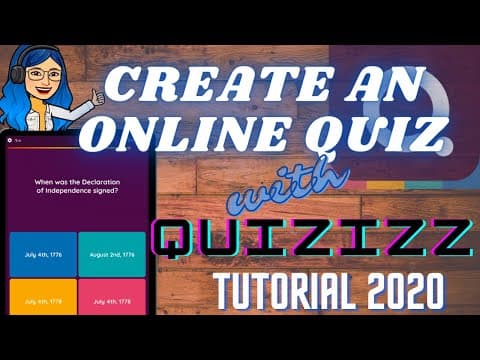
[0:13]Hi peeps, welcome back to my Estrang Techy YouTube channel. For today's video, I will teach you how to create a quiz using Quizzes. So, without further ado, let's get started. Punta lang po tayo sa ating any browser and let us type quizizz.com. And we will be redirected to its website. Ang quiz is a digital app that allows you to pick or create your own quiz. So we have here three tabs, join a game, log in if you have an existing account na and then sign up. So let us click sign up. You can sign up using your Google account. So, sign up lang po tayo, gamitin po natin kung ano yung ating account. And then, meron po tayong three options dito, at a school, at a business, personal use. So, piliin po natin as a teacher at a school. And then, you are a piliin natin teacher. And then, as you can see, nandito na po ang inyong profile, yan. Then we have here create if we are going to create a quiz. We have there the library, reports, classes, collections, memes, settings and then log out, refer a friend. And then if we have questions, click lang natin 'tong help. If we are going to pick a quiz, search lang natin dito kung ano yung ating topic. For example, respiratory system. And then pwede na tayong mamili diyan. Sa mga yan kung alin yung mga quiz na ating gagamitin. For example, gamitin natin ito. You can view that and then pwede din natin ma-view yung mga questions. Kung gusto natin siyang ma-practice, click lang natin yung practice and play. Makikita na natin kung paano at ano yung laman nung quiz. Yan. If we are going to create our own quiz, click natin itong button na 'to, click create. And then, lagay natin ano yung pangalan ng quiz natin. For example, Quiz #1. Then, let us choose kung anong subject yung inyong gagawin. Let us choose science, then click next. Yan. So we have two options. You have to create your own question or pwede tayong kumuha ng question mula sa quiz is library. So let us write our own question. And then, meron tayong mga options dito, multiple choice, checkbox, fill-in-the-blanks, poll, open-ended. Pwede po tayong mamili diyan kung anong klaseng type ng question ang gagawin natin sa ating quiz. So, let us try multiple choice. Lagay natin dito yung ating question. After we type our question, lagay na po natin yung ating mga options. Pwede din po tayong maglagay ng image or kung mathematics po ito, you can add an equation. Same thing sa question, pwede po tayong maglagay ng image or ng audio. So, lagay na po tayo ng choices. Kapag nalagay na po natin yung ating mga options, yung ating mga choices, do not forget to check kung ano yung correct answer. And then, click save. On this part, dito naman po yung allotted time ng estudyante to answer the question. Pwede po natin yang mabago, mapili po natin kung gaano katagal. So ayan na po yung ating question #1. And then, dito naman po sa parte na 'to, add quiz image. Pwede po tayong mamili kung anong cover photo ng ating quiz. For example, upload a picture mula sa ating computer, ayan. And then, dito naman po kung anong grade level. Grade 9. Next, who can see this quiz? Siyempre po, para magamit ng ating mga estudyante, public, visible to everyone. Then click save. Next, let us add up another question. Click lang po natin new question. Let us try naman po checkbox. And then, let us type our question here. Same thing lang po katulad sa multiple choice. You can add an image or audio, same with our choices. So, let's type our question. Then, let us try to change the time allotment. Let us say 20 seconds. And then, click save. Yan. So, kapag nakalimutan po natin ilagay yung tamang sagot, magkakaroon, hindi po natin siya mase-save. Magkakaroon ng notice na kailangan i-click natin yung tamang sagot. And then, we have two questions. Let us add another one. Fill-in-the-blanks. Let us just type our question and then type the answer. We can also add an alternative answer. So don't worry, dahil dito po sa quiz, is hindi po siya case-sensitive, kung capital letter or small letter. And then, ito po ulit yung ating time allotment. Click save. So, there you have it. We already have our free questions. Next, we have poll. Polls are ungraded po. Ginagamit natin ito to for them to vote. Next, open-ended question. This is also ungraded. However, try po natin 'to. Let us say, for example, this is the question. Click lang po natin yung save. Ayan. So, pwede pa po kayong magdagdag. Tapusin lamang po natin itong quiz para makita po natin ang itsura. For example, meron po tayong gustong i-rearrange na mga questions, meron po tayong gustong unahin. Gusto po natin pagpalitin itong question 4 and question 5. Click lamang po nating small box here to reorder the questions. And then, drag po natin yung mga questions na gusto nating palitan. And then, click lang po natin 'tong green na 'to, na done. Next, this teleport. Pwede po tayong kumuha ng questions mula sa mga quizzes na meron na dito sa quiz. So, pwede po kayong mamili diyan and pwede po kayong mamili ng mga questions. That is for teleport. Kapag tapos na po tayo sa ating quiz, nagawa na po natin lahat at kumpleto na din po 'tong mga details na 'to, nagawa na po natin 'yan. Click lang po natin 'tong white button na done. And, as you can see, ito na po yung ating quiz. So, kung gusto po nating malaman at makita kung anong itsura ng ating quiz, click practice.
[6:30]This is fast-forwarded.
[6:55]For example, the students answer.
[7:06]If asynchronous, assign HW. Schedule its availability. You may instantly assign this to your classes.
[7:31]Advanced settings allow you to customize your Quizziz account.
[8:15]Let's check the quiz made.
[8:38]at maglalaro ang estudyante. As easy as that.
[8:49]So, kung gusto po nating i-edit itong ating quiz, click lang po natin 'tong pencil icon na nandito to edit questions or edit answers. Para naman po makita po natin ang outputs at ang mga scores ng ating mga estudyante, click po natin 'tong reports at makikita na po natin 'yan dito. So, that is all po for creating a quiz using quizizz. I hope you learned something new from today. If you have questions, comment down below and if you like this video, click like, share and don't forget to subscribe. Thank you for watching.