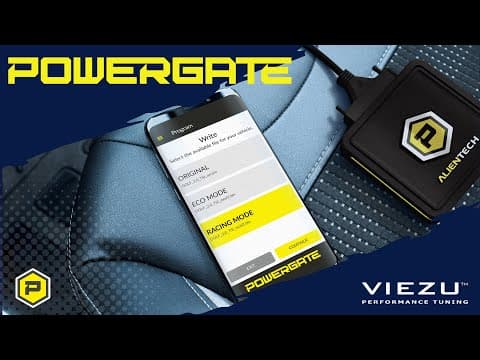
[0:00]And today we're going to talk you through how to use Alien Tech's all new Powergate device. So let's get started. Firstly, attach the OBD cable to your Powergate, then plug it into the vehicle via the OBD port. Once plugged in, the Powergate will display a blue lot. You can now open the mobile app. Notice the ignition of the car hasn't yet been turned on. The app will display some general information about Alien Tech. As this is your first time use, it's going to ask you to sign in. We already signed in on this device and already registered, but follow the onscreen process to register your Powergate device. Once registered, the device displayed at the top of the app should match the serial number on the back of your Powergate device. Whilst the device connects via Bluetooth, you will still need to be connected to the internet to use it. You can either do this via Wi-Fi or use your mobile data. Once connected to the internet, the Powergate will check for any software updates it needs to perform. Whilst you're connected to the device, the Powergate will display a yellow light.
[1:23]To begin with, please select your vehicle from the dropdown menu. In this case, we will be selecting Ford, petrol, as it's a 2014 Fiesta EcoBoost.
[1:38]It will display all of the vehicle's details such as horsepower or newton meters and lots of other information to help you confirm you have the correct vehicle. Press continue and this will begin to load a new session. It will present you with some ECU options. In this case, our car is a Med 17.2. So we'll select that one. As you can see, the connection between the car and the Powergate has started. This may take some time, but once it has connected, it'll give you the options for ID, reading, and writing. We have to press ID first and follow the onscreen prompts. The Powergate will turn red as it tries to communicate with the vehicle for the ID process. And it'll flash as the communication is taking place. During the ID process, it will export the ID data to the cloud. It will then notify you the ID process has completed via an in-app notification.
[2:40]It'll then let you know that you need to take a read of the vehicle next. Click next to continue and select the reading option from the following menu. This will start the reading communication process. A warning notification will appear reminding you that you need to connect a battery stabilizer to your vehicle for the reading process to be safe and successful. If you haven't yet done so, now's the time to do it. Once it's all connected, click okay. Follow any onscreen instructions the app presents you with. In this case, it's asking us to turn the car ignition on and press continue. It rechecks the ID before proceeding further and then asks if we would like to proceed with the read. Please click okay.
[3:29]The light will flash on the Powergate unit during the reading process.
[3:39]As the reading process comes to a close, it will notify you to turn the vehicle off. You will then receive a notification telling you ECU reading successfully completed. Please click okay to continue. It'll then begin to export your vehicle's read file and send it to your master. You will receive another notification telling you your request is under evaluation. You will receive a notification once the operation is complete. Please select next below this message to be taken to the final screen where it will ask you to confirm everything and ask if you wish to proceed. Click confirm to continue and this will take you back to the main screen of the app. There may be some time before you receive your file back. So you can close the app by following the onscreen instructions to close your active session. Once you have received your file back, open the app once more and it'll ask you to connect to the Wi-Fi again. Then begin to connect to the device and run all the necessary checks it needs to perform.
[5:05]It'll then ask you if you would like to continue from the last active session. Select continue and select the same ECU again. It'll then take you back to the last point that you were at. In this case, the next stage is the writing option. Select the writing option on the main menu and click next. This will take you to a menu screen where you can select the file you wish to route to your vehicle. In this case, we will select Ford Fiesta EcoBoost Performance File and click next. It'll then ask you once more to connect a battery stabilizer. Please do so if you haven't already. Once connected, press continue. It will then tell you to turn the ignition on. Please do this and click okay to continue. The Powergate will start to flash red once more as it communicates with the ECU. First, it will perform an ID check to confirm you have the right vehicle. It'll then ask you if you wish to proceed with the rotting. Select okay to continue. Please follow the onscreen instructions during the writing process.
[6:24]Once the writing process has been completed, it'll take you back to the ID reading and writing screen where you can close the active session down. If you have any further questions on how to use the Powergate on your vehicle, please contact Viezu on 01789774444 or email us at info@viezu.com.