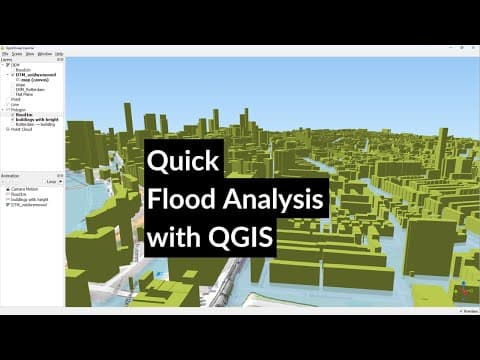
[0:07]Hello, welcome back on my YouTube channel. In this video, we are going to do a simple flood analysis. I'll start with adding open street map from the browser panel to have some context and I use the locator bar to locate a city. In this example, I will use Rotterdam. Zoom in to the area that you want to study. Now, I'm going to install a quick OSM plugin, which I will use to download buildings from open street map.
[0:40]Click this icon, and in the quick OSM dialogue, type for key building. Leave values as it is, so it will search for all buildings in the canvas extent. Expand the advanced section and make sure you only have multi polygons selected in the right column. So we will only download building footprint polygons. Click run query. After it downloaded all the buildings, close the dialogue and check the result. In the lower right of the screen, I see that the on the fly reprojection is the pseudo Mercator, while I want to work in the Dutch projection. So, here I've changed the projection of the project, the on the fly reprojection to the one of the Netherlands. Next, I want to export the buildings to a geo package using the correct projection. I select the Geo package, give it a layer name, and I change the CRS to the one for the Netherlands, so the buildings will be reprojected from pseudo Mercator to this projection. Click okay. Let's remove the temporary buildings layer because we are going to continue with our Geo package building layer. The next step is to download the digital terrain model and the digital surface model of this study area. For this, I will use the PDOK services plugin. With the PDOK services plugin, you can get access to many open data sets for the Netherlands. After installation, click the PDOK services plugin icon and there you see the list of layers that are available. AHN is the Dutch elevation model, and here you need the WCS layers for the digital surface model and the digital terrain model. Click one of the layers, and click standard to add it to the layers panel. This will take a bit because it's a large data set. Now repeat this for the digital terrain model. If you choose Boven, it will arrive at the top, and if you click Under, at the bottom of your layers panel. Here, I choose Boven because I want it at the top. This is a 50 cm elevation model available in the raster format, so we can further process it. Let's clip the DTM and the DSM, and I'll use export, and I save it to this file name DTM Rotterdam. And I'll make sure that I use the map canvas extent, so I clip the whole DTM to the map canvas extent, and then I click okay. It will download all the pixels now.
[3:33]Remove the original layer, and repeat the procedure for the DSM. So click right, use export save as. Choose the file name, take the extent from the map canvas extent, and click okay.
[3:55]Let's have a look at the layers. Open the layer styling panel. And remove the DSM, and what's always nice to visualize is using the hill shade. So I'll hide the layers that are below, and here you see that with the DTM, the building footprints have been filtered out of the elevation model. So there we have the terrain, and with the DSM, we can do the same. We visualize it with the hill shade, and there we see also the difference that with the DSM, the buildings are present, also all the natural features like trees. But we need to interpolate our DTM if we want all the surface levels that are also below the buildings. So I'll use the fill no data tool from GDAL. With that tool, you can interpolate no data values, which are called voids. So use the DTM as input, and change the maximum distance to 100 in this case, so we have a search distance that is enough to contain other pixels to base the interpolation on. So this distance is in pixels, and our pixel size is 0.5 m. We don't need any advanced parameters, and we save the result to DTM voids removed.tiff. Then click run.
[5:22]Close the dialogue, go to the layer styling panel and visualize the result as a hill shade.
[5:33]And compare it then with the original one, and here we see that most of the voids have been filled. Let's remove the original layer. And now we compare the DTM with the voids filled with the DSM. So here we see in the DTM that the buildings have been removed and the trees too.
[5:57]Now we can also have a look at the histogram. If you click compute histogram, you will see here the distribution of elevations in this image. And you notice that there are several peaks. These peaks have to do with the presence of dykes and polder levels that are different heights.
[6:20]Now I'm going to calculate the slope to have an indication of the dykes. Because the dykes should have steep slopes, I keep all the defaults here, and I save the file to slope.
[6:34]Here we see the result in gray scale. Looks a bit sketchy. Go to the layer styling panel, and there I use single band pseudo color because it's a continuous raster. And I choose here the Veridis color ramp, and this doesn't give us much contrast, and a good way to increase the contrast here is to use a cumulative count, and there you see now in bright yellow the steepest features, which are our dykes. So this is a way to get more information about the structure of this polder area with the dykes. We also see the talutes of highways and other infrastructure.
[7:19]Next, I want to extrude the buildings. Let's have a look at the layer properties and check the attributes. You can find the attributes under the information tab, and if you scroll down, you see here all the fields that are available in the attribute table. There are two fields that can be used to extract the elevation, that's the height field and the building level field. However, these fields are often not filled in and give an unreliable result.
[7:52]So in this video, we're going to do it differently. We're going to use the DSM heights for giving the heights to the buildings. Go to the processing toolbox and search for zonal statistics. Double-click the zonal statistics tool, and make sure your input layer is the building layer, and the raster layer from which we want to calculate the statistics is the DSM. Use the output column prefix of Z underscore, and we are interested in the mean elevation per building footprint taken from the DSM, and we will use that then as the elevation of the buildings. Save the result to the Geo package, and call it buildings with height. Click run. Click close after completion. I'm adding DTM void removed under buildings with height, and I hide other layers.
[9:05]I'm going to style the DTM now with single band pseudo color.
[9:13]And I'm going to save the project. Save it as floods.
[9:22]And I'm going to style the buildings with height, and choose the 3D view. Change it to single symbol, and for extrusion, I use the data defined override, and I use the Z mean field that we've just used for zonal statistics. And this will lift our buildings to the average elevation that was found in the DSM.
[9:52]So now I'm ready to use the 3D map view, and here you see the extruded buildings in the landscape. In the layer styling panel, you can also control the color of the buildings. Now, I still need to configure that the DEM raster that is below, uses the DTM elevation values, and I'm increasing here the tile resolution to get some better detail. Click okay. And now we can see the dykes in the landscape and the buildings, and this gives us an impression of the elevation differences and the objects at the surface.
[10:39]The next step is to calculate the flood map. Double-click on the DTM, and use the less than or equal operator and type one. So, we'll select all the elevation values that are less than 1 m, and we will give that the value one for true, and the other pixels the value zero for false. In this way, we simulate a sea level rise of 1 m.
[11:07]This is the result. Let's style it to make more sense out of this, and we use the palette unique values renderer because it's a Boolean raster. Remove the zeros, and change the ones into blue, so it corresponds with water.
[11:28]Now we see which areas in the city are flooded. We can also see which buildings have been damaged.
[11:36]Now I'm going to create a polygon from this flood raster. I save the file to a shape file.
[11:48]And here's the result, but it contains both the zeros and the ones. So I go to the attribute table. I use select by expression, and I choose DN equals zero to select all the features that have zero, so which are not flooded.
[12:11]Then I toggle the editing mode, and I delete those features, so I only have the flooded areas left over. Toggle off the editing, and save the edits. And also give this polygon a light blue color for water. You can here also reduce the opacity, so we can see what is below. Of course, we need to hide our flood raster, and it's also nice to add an aerial photograph below. We use here the 8 cm aerial photograph and put it below. I hide some layers that were in between, and there I see the flood extent over the aerial photograph. Now I would like to visualize the flood with 3D buildings in a 3D view. Instead of using the default 3D view of QGIS, I'm going to use the QGIS 23JS plugin.
[13:15]Hide all your layers, and make sure only the open street map layer is visible in the map canvas. Then click the icon to start the QGIS 23JS exporter. Click the DTM void removed layer, and you will see here that the open street map is visualized in a 3D view. You can use your mouse to navigate in the 3D view. Now go to scene, and choose scene settings, and there we can change a little bit the exaggeration to see better the elevation differences. So here I change it to three, and click okay. The 3D view will render, and here we see the result, and now we see the dykes visible in the landscape. The next step is to go to the layer properties of the DTM, and increase the resolution by increasing the resampling level, and change the image width to 4096, which is the highest you can choose. Then click okay. If your computer cannot handle this, you need to lower these resolutions. Here we see the result, and we see much more detail here in the city, and we can clearly distinguish the dykes here in the landscape. Now go to the layer properties of buildings with height. And set the type from polygon to extruded. For Z coordinate, use relative to DTM. For the geometry, use Z mean for height.
[15:03]Keep the rest as default, and click okay. Now check the box to show the buildings. Now we have the buildings in 3D, draped over our open street map, which follows the digital terrain model.
[15:24]Now go to the layer properties of the flood polygon. Here also set the type to extruded. For the Z coordinate, use the DN value, which is one in this case, which was true, so one, 1 m. And for geometry, I also use the one from the DN.
[15:52]If you use other elevations for the flood, you, of course, need to edit the DN field with the flood height that you are using. And here's the result. We see in light blue with some opacity the flooded areas. Let's maximize the screen and fly a bit through the landscape to see which areas are flooded. Of course, the areas which have dykes or higher areas in general are not flooded, but all the lower areas now are blue.
[16:32]So I hope you've enjoyed this video, and that this helps you to analyze floods in your own study area.


