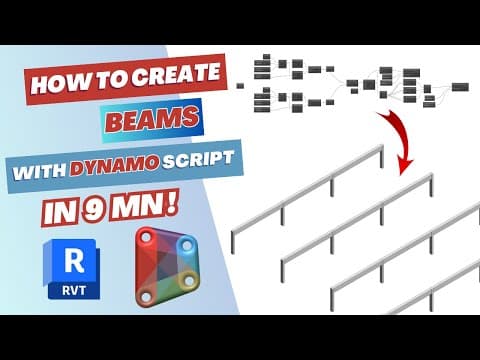
[0:00]In today's tutorial, I'm going to show you how to create Dynamo scripts that can help you automatically model beams and columns in Revit. So let's get started. First, we'll double click and write number slider. Choose the node and then create three copies of it by simply selecting it and pressing on control. Next, we will double click and create a code block and type two inside it. Then we will change the values in our number sliders. To, for example, 40, 10, and 40. We are currently creating the grid system for our frames. Next, we will double click and right range. The code block output will be linked to the start of the range node, and then the first two number sliders will be connected to the end and the step of the input of range. Now we will find by coordinates node, the XYZ point by coordinates. And we will link the less to the X input.
[1:19]Next, we will copy the node. And go to the third number slider and connect it to the Y coordinate. The next node we will need is line by start point, end point. And the first point will be linked with the start point, and the second one will be linked with the end point. Now we will go to the library and look for grids, by line grid. And simply link the output of line by start point, end point to the input of the grid, and then select them all and create a group. We can obviously change the color of the group, the font, the size. Now we'll give it a name, grids A, which will be the grids following the X coordinate. We will select the whole group and duplicate it.
[2:24]Give it a different name because these are going to be the grids following the Y coordinate. We're going to do a couple of changes here. We'll go to point by coordinate and change the input from X to Y. And then we'll go to the third number slider and link it to the X input in point by coordinates. And we can view it both in Dynamo and in Revit, our grid system.
[3:04]Now we will go back to Dynamo and start creating our columns. First, we will choose geometry intersect node. We will link the line from line by start point, end point in grid A with geometry, and the one in grid B with others. Now we will find geometry translate node by writing translate. And we will link the geometry output with the geometry input. For the Z, for the Z translation, we will create a code block. Write the relevant elevation we need. Make sure that you go to geometry intersect, right click and go lacing, and make sure that it's cross product.
[4:07]Now we will right click again and choose by curve. Go all the way down to find column by curve.
[4:24]And then we will find the by start point, end point. Node, and link the geometry with the end point, and then the geometry in geometry intersect with the start point. Now the line will be linked with the curve as in the input of structural framing column by curve. And now we will find the node for levels. Choose the level of our columns and link it with the level input. Now we will write structural columns. And find structural columns type node. Choose whatever type we want to work with, and then link the input with the output, with the input and structural framing column by curve. And once we checked in Revit, we can find that our columns has been created. So now it's time to start creating our framing, structural framing for this design. We'll create a code block. We will type a sub zero.
[5:43]Copy it. Okay, first link it with the geometry. And then create multiple copies. We will later change the numbers, so it's going to be A sub zero, A sub one, A sub two. And A sub three.
[6:10]Now we will find the by start point, end point, line by start point, end point node. And create multiple copies of it. Actually, for this example, we're only going to need three. And make sure that you link the first line with the start point of the first node and with the end point of the second node. You can follow here and understand the concept. You'll get later that's how we'll be creating our framework.
[6:49]A sub three, the end point of the final node, and A sub zero is the start point of the first node. And as we can see, we have created the lines of our framing, of our structural framing. Now, we just need to add the geometry, the 3D geometry. We will go to by curve, or beam by curve, sorry. Structural framing beam by curve.
[7:26]Then we will go to list create. Add three items. We will link each line with one item in our list and then create, link the output of the list create with the curve in structural framing beam by curve. Now we need a node to set the level of our framing. We'll go to levels, choose our level. Link it. And now we will find the node that will help us choose the structural framing type. Which is structural framing types. You can choose metallic or metallic beams or concrete beams or wooden beams, whichever works for your project. And simply link it. And now we will go to Revit and check around our model and we can simply see our framing and beams. So yeah, that's it. Make sure that you save your Dynamo script so you can use it in future projects, simply change parameters, save time, reduce the manual modeling in Revit. And if you're interested in content like that, you can check around my videos in my channel and obviously like and subscribe if you like this video. Thank you for watching.


