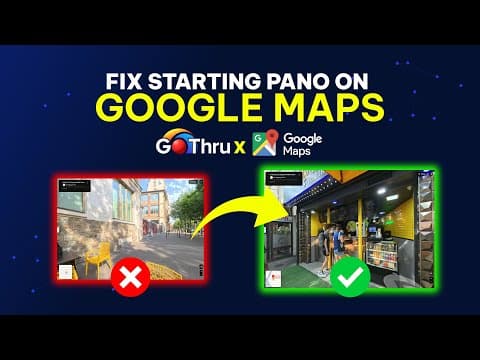
[0:00]Hi everyone, this is Alan from go through, the best platform for publishing virtual tours to Google Street View. In this video, we're going to see how we can change the starting panel and we can pick the starting panel for a tour on Google Maps on desktop and on laptops. So let's go ahead.
[0:25]Uh, the tours that we're going to work on. And if we notice this is a coffee shop and we have this thumbnail here in the right corner. And if I'm clicking on it, it's going to face this window. That's not what we want to have the first starting angle. And this is Los Pollos and and I'm clicking on this starting panel here, I'm facing a wall. Again, not very pleasant. We're going to go into GoThru and we're going to start with Fika. And we're going to open 360 image connector. And what you're going to notice, we have this green dot and what this green dot represents is where the pin, yeah, where this pin is on Google Maps. So that's what that green dot is. And uh, the panel uh, that we uh, that Google is displaying here is the closest panel through this pin and the angle is the angle between this dot and this panel. So if I'm clicking on here and I'm facing the green dot, I'm going to see this and that's exactly what I'm seeing here. And yeah, that is what is happening for Los Pollos. Now, what we have to do is just choose the starting angle and let's say we want this one. And we're going to move the constellation, so we're going to face, uh, that green dot and and to be the closest to number two. We're going to save and then we go back to GoThru, we got to publish, and then we're going to click on update button. And we're going to do the same for Los Pollos. So click my tours, go to my, uh, Los Pollos. Open image connector. The image is here. And if you click number two, yeah, that's the direction. And let's see which image. So probably something like this I want. Uh, so I can do that or I can just do this. So it's up to me. So it has to be as close as possible to this dot. Uh, again, I you can put it on top, but then you don't know exactly the angle it's going to be, so probably something like that. And we're going to save. And now we're going to go to publish and click update.
[3:30]And now we just have to wait for the tours to be, uh, published. We can check the status of the publishing tour by clicking on the Google publishing button. Uh, and uh, the tours are not publishing yet. We in GoThru, we publish the tours every five minutes. So, uh, they are in queue now to be published. Uh, but once we are done with the publishing, we're going to refresh these two pages and we're going to check the thumbnails that we have on the right corner. Okay, so one week passed and let's double check what's happening here. This is Los Pollos and if we check, let's reload. This is the panel that we had close by and the direction is correct. And this is Fika.
[4:38]Now, Los, uh, Los Pollos, it took about, I don't know, uh, half an hour to update, but it was pointing in that direction. And then about a week after it started pointing in that direction. Now, regarding Fika, it took actually a week.
[5:10]And I played in the meantime. So the angle is changed. Initially, I set it up for this angle. But then I I went inside the tour and I've repositioned the image. So now it's the the closest image to the point to the green dot is number three, you know, and this direction. So if we go back in here, that is and for this one, it took about a week also. Now, not all the tours will take about a week. Based on my experience, uh, some of them took um, 30 minutes and some of them a few hours. But there are a few more stubborn like these ones that will take you take about a week. Okay. So thank you for watching this video and learning how to uh, set up the start panel for for a Google Street View tour. Uh, I hope you liked it and uh, please join our YouTube channel and click on the little bell icon that helps us, uh, grow the channel and create amazing videos like this. Thank you very much. Bye bye.