[0:04]Hi, my name is Mikael Hirn, and I work in the risk management unit at ECA. In this video, I will show you how to create a microplastic reporting dossier in Euclid and submit it to ECA through REACH IT. The reporting requirement was introduced by the EU's microplastic restriction that came into force in 2023. The reporting requirements apply to certain uses of synthetic polymer microparticles or SPMs in short, that are exempt from the EU-wide ban. The reporting requirement first applies to manufacturers and industrial downstream users of SPM in the form of pellets, flakes and powders used as raw materials in plastic production at industrial sites. Manufacturers and industrial downstream users need to submit their first report by 31st May 2026. This report should cover SPM emissions that occurred during the 2025 calendar year. All other users that require reporting need to have their first report in 2027. From that point onward, reporting will be required every year. For more information, consult the reporting guidelines document. You can find a link to it in the video description. Each legal entity with a reporting requirement should submit its own report. The legal entity can be a manufacturer, an industrial downstream user, or a supplier of synthetic polymer microparticles. Reports must be completed per use and selected from a predefined pick list as shown on the next slide. The relevant use in Euclid can be selected from a pick list that contains six uses. Initially, only the first use on this list, that is, the manufacture or use of pellets, flakes and powders for plastic manufacturing at industrial site is subject to a reporting requirement with a reporting deadline in 2026. The reporting for the remaining uses start in 2027. Since reporting is done per use, each relevant use for the legal entity should be entered as a separate row in the Euclid section two table. I will show you how to do this later in the video. The following elements are to be reported per use: description of use, including use name and the applicable standard descriptors, such as product category, sector of use and technical function where relevant. Multiple options for each of those can be selected.
[3:00]For more information on use description, please refer to the ECHA guidance on information requirements and chemical safety assessment, chapter R12. A link can be found in the video description. Applicable derogations should be selected from a predefined pick list, based on paragraphs four and five of the restriction. These paragraphs outline the derogations that require reporting.
[3:29]The identity of the polymer is also to be selected from a predefined pick list. Multiple polymers can be selected, and there is no need to report each polymer separately. An annual estimate of emissions should be reported as one total figure per use, expressed in kilograms or tons. There are two options for reporting. Option A is that you report the quantity of particles containing SPM, including any non-SPM components, such as additives or fillers. In that case, you can select the concentration range of SPM from a drop-down list. Alternatively, you may report only the estimated total annual amount of synthetic polymer microparticles released into the environment. To summarize, the following are needed for submission. To access ECA cloud services and submit a dossier in REACH IT, you need an ECA account for your legal entity. Check this video for instructions. You will also need to collate the information on use and estimated emissions as shown on the previous slides. The reporting is done through a dedicated Uclid-based template and REACH IT is the submission tool. Links to further information are listed in the video description. Next, I will show you how to create the dossier using Euclid in ECA cloud services and how to submit it using REACH IT. Note that you can also use a local installation of Euclid. You will find more information about this on the Euclid website.
[5:27]Let's get started. First, you need to download the pre-filled substance dataset from the Euclid website. A link can be found in the video description. Download the IC6Z file and save it locally to your computer. You will later import it to Euclid. Next, you need to access your Euclid installation. In this video, we will use the Euclid cloud service provided by ECHA. You need to access our cloud services on ECA's website. Scroll down to the tools and services on ECA homepage. Click on ECA Cloud services and access ECA Cloud services. and login. Once logged in, click on access service on Euclid 6. On the Euclid dashboard, click on browse in the import Euclid files box. Select the substance dataset, the IC6Z file. Alternatively, you can also drag and drop the IC6Z file in the import Euclid files box. When the import is complete, a green checkbox symbol will appear next to the file name. By default, datasets are imported as dossiers in Euclid.
[6:54]After import, click on the provided link to access the imported data. The corresponding dossier opens. Select extract to dataset to convert this dossier into an editable dataset that you will then be able to use to report the relevant data. Once the dataset is created, click the provided link to access it.
[7:29]You are now presented with a view of the substance dataset with the relevant table of contents displayed as a navigation tree on the left-hand side of the screen. You can see that the working context selected is already the appropriate one REACH microplastics reporting. Euclid only shows the parts of the dataset that are relevant and need to be filled. You can expand and collapse the navigation tree on the left, where you will find the sections of the chosen working context. You will see that most of the sections are already prefilled. Next, we will add the information that needs to be reported in section two. Open the Euclid record already created under section two. Fill in the year you are reporting for in the reporting year field.
[8:30]For example, when completing the submission by the 31st May 2026 deadline, emissions for the 2025 calendar year should be reported. In such case, 2025 should be entered in the reporting year field. To add information per use, click new item on the table below to add cells to fill for that use. Select the appropriate information for each cell. In the use column, select one of the predefined uses from the list. This is the level of granularity for the reporting. You can choose whether you wish to report emissions on this level or report on a more granular level, for example, by splitting multiple uses at industrial sites into multiple rows.
[9:22]For instance, if you are a manufacturer and an industrial downstream user of SPM, you could report the emissions in two separate rows if desired. However, the emissions can be combined into a single figure and reported under the predefined manufacture or use of SPM at industrial site use, making sure that both are adequately reflected in the use description. In the first year of reporting, only manufacturers and industrial downstream users of SPM in the form of pellets, flakes and powders for plastic manufacturing have a reporting obligation. This corresponds to the first use in the pick list. For derogations, select all applicable derogations for the use. Fill in the use name on a free text field. Select all applicable product categories, sectors of use and technical functions. And if applicable to the use category in the first column, please create and select the relevant site. For each use, generic information on the identity of the polymers needs to be provided as well.
[10:47]Let's take the manufacturing of SPM in the form of pellets as the case study. This fits under the first predefined use and the first derogation. The use name is manufacturing of SPM in the form of pellets for plastics manufacturing. As explained in the guidelines document, under the product category, the option other PC0 should be selected, and manufacturing of SPM should be specified in the free text field. However, an industrial use would select one or more applicable product categories instead. Next, the applicable sectors of use can be selected from the pick list.
[11:38]The technical function is not applicable for manufacturing of SPMs. If you are reporting a use for the manufacture of SPM, the option no specific technical function should be selected from the pick list. Site is relevant for manufacture and industrial use, and therefore a site has to be defined and linked to the reported use in the corresponding row. To do this, we click on the site cell to either select an existing site or create a new one. As a minimum, a site needs to have a name, address, postal code, town and country filled in.
[12:27]Link the relevant site to the use by selecting it. For generic information on the identity of polymers, select all applicable polymers from the pick list.
[12:41]Then fill in the estimated emissions quantity. For this, there are two options to choose for reporting the quantity. Option A is the quantity of particles containing SPM. This is the reported total volume of the particles, including that of the SPM, plus that of any non-SPM component of the particles, such as additives or fillers. In addition, it is optional to provide the concentration range of SPM in the particles. If not provided, a default assumption of 100% will apply.
[13:21]You can also report the estimated quantity with option B, which is the estimation of the total annual volume SPM reported in kilograms or tons of the polymers fulfilling the SPM definition according to the restriction.
[13:40]The reported total volume only includes that of the SPM, excluding any other components such as additives and fillers. All quantities for both options A and B are to be reported in kilograms, if below 1 ton, or tons when exceeding 1 ton. The regulation does not foresee a lower limit for reporting, and estimated emissions should be reported for all uses subject to the reporting requirement, including those uses where very low or zero emissions are estimated.
[14:16]You will need to include all uses applicable to your legal entity in a single dossier. This means creating and filling a new row for each use you need to report. As an example for uses with a 2027 deadline, for example, if your company is a supplier of various medicinal products and in vitro diagnostic devices for use in the professional setting, and the products contain SPM in varying amounts above the 0.01% threshold. In this case, the uses are covered under both consumer and or professional use in medicinal and veterinary medicinal products and consumer and or professional use in in vitro diagnostic devices. In this case, you should provide the reporting information for these two uses in a single Euclid dossier, using two separate rows in Euclid section two reporting requirements table, covering all relevant products in each row. Cells that are not applicable to the use are grayed out in the table and thus cannot and don't need to be filled in. Rows can be added to the table by clicking new item above the table and removed by clicking remove item in the last column actions. When the necessary information is entered, save the record.
[15:57]If you are reporting emissions for more than one calendar year, a separate record for each year is required. You can add a record for additional years by clicking the plus sign next to the section two and then filling in the table again for that year. It is possible to download a CSV template of the table in section two, fill in the required information in Excel or a similar program, and then import it into Euclid.
[16:30]This could help simplify the SPM reporting process, for example, if the same or similar information is filled in by the legal entity in subsequent years. In section three, it is possible to add an attachment to your dossier. Such information is not required during the initial submission, but may be subsequently requested by the member state competent authority. This could include further specific information on polymer identity and the function of the polymer. You can add these by clicking on the plus sign next to the section in the navigation tree. Click the created record and document/report under the field attachments and select file. Choose the file you want to upload and fill in any information and remarks on the attachment in the field below in Euclid. Once your dataset is ready with all the required information, use the validation assistant to make sure the report is complete. Click on validate at the top right. It will open a new window where you can add a name for your dossier. Click validate in the bottom right corner. If information is missing or there are any errors, the validation assistant report lists and links to records that need to be corrected, along with a brief description of how to fix them.
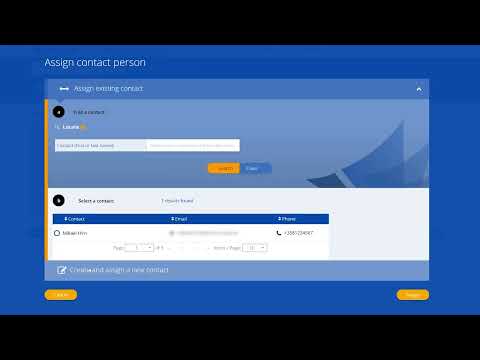
[18:09]When the dataset passes the check, you can create the dossier. Close the validation assistant report and click on create dossier at the top right to create the dossier. Click again create dossier in the bottom right corner. Your dossier is now ready to be submitted in REACH IT. Navigate to REACH IT from the ECA account page. Click on menu and under microplastics report, select upload a Euclid dossier. Click on continue to upload dossier. Here you click on select from Euclid cloud to select the dossier that you created earlier. It might take a few seconds for the dossier to appear. Click continue to additional details. Here you add a contact person. Create a new one if the contact doesn't exist and add the required information. Assign or create the contact person and click continue to the confirmation page. Check the information, edit if needed, and click on confirm. You will get a confirmation and a preliminary submission number. By clicking on the preliminary submission number, you will be redirected to the submission report page, where you can track the progress of your submission by refreshing the page. You can find your report under the substances tab in the homepage of REACH IT. You can search for your substance and or filter by dossier type, microplastics report to narrow down your search results. Click the submission number to access the submission report. From here you can extract the submission report as a PDF if you wish. Your reference number is also on this page. Both reference number and submission number are needed if you need to update your dossier. If you have any problems with the report or the tools, contact the ECHA Helpdesk. Thank you for watching.