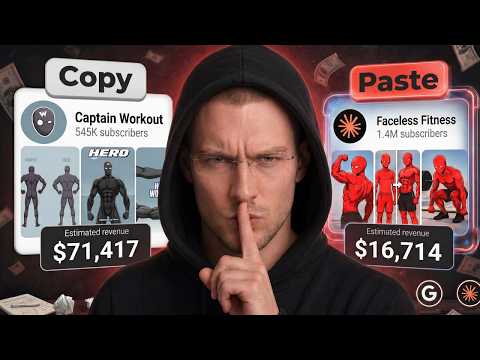
[0:00]Now, with the launch of Claude Opus 4.7, it is finally possible to create videos across any niche completely from scratch. And in this video, I'm going to show you how to replicate any channel across any niche using Claude Code. We're going to cover the full process from creating your channel in any niche to coming up with high quality scripts, generating your voice over, making your visuals, creating your thumbnails, and editing everything together. All with the help of Claude Code. Okay, so first things first, you've got to figure out the niche you want to replicate. What kind of niche do you want to get into? For me, I've been seeing these faceless fitness channels that are just blowing up right now. There's this one called Yellow Dude. They've got only around 100 videos, but they've already hit about 1.5 million subscribers. And when I check their performance, not going to lie, it's actually insane. I also found another channel in the same niche and, yeah, it's doing really well, too. They've got like 10 videos that have each crossed 1 million views, which is honestly crazy. So, yeah, at this point, it's pretty clear this niche is working. So for me, I've decided I want to replicate something like this. I'm going all in on the faceless fitness niche. Right now, I've got about three channels I'm looking at. Now, if you want to get into a niche, but you don't really know how to find more channels in it, here's a really easy trick. Just find one channel in that niche, click on one of their videos, and let it play for a bit. Then go over to the right hand side where YouTube shows suggested videos. You'll start noticing that YouTube is recommending more videos in that same niche. So, just click on one of those and watch it. Once you do that, boom, you've probably just found another channel in the same space. And then you just keep going. Watch a video, check the suggestions, click another one, and it kind of loops like that. Before you know it, you've got a bunch of channels in the exact same niche. Try to find at least like three or four solid channels. The more you have, the better because it gives you a clearer picture of what's actually working. All right, so once you've found a few good channels in your niche, the next thing you want to do is head over to your browser and search for Claude Desktop Download. You should see a site that says something like Claude download. Just click on that and it'll take you to a page that looks like this. From here, all you've got to do is download the version that matches your system. I'm on Windows, so I'm going to click download for Windows. If you're using a Mac, just grab the Mac OS version instead. Once it's downloaded, go ahead and open the installer file and install it like you normally would. Nothing special there. After that, Claude is going to ask you to log in. Just sign in, and once you're in, you should see an interface like this. Now, on this screen, you're basically looking at the Claude code interface. If you go over to the left hand side and click on the menu icon, you'll notice there are three different modes you can switch between. The first one, the chat icon, takes you to the regular Claude chatbot. The second one, the co-work icon, opens up more of an automation workspace, which we're not really going to touch in this tutorial. And then the last one, the code icon, takes you into Claude code, and that's the one we're actually going to be using. All right, now this is where we really start cooking. You should be looking at an interface like this. So, the first thing you want to understand is how to actually prompt Claude code to do what you need. And don't worry, for this course, I've already handled that part for you. I put together a master prompt that basically automates the whole workflow. So instead of you trying to figure everything out piece by piece, you can just use this and let it handle most of the work. All you've got to do is click the link in the description to access it. Then, start copying from the very first line, the one that says, "Hey Claude." And make sure you copy everything. Don't leave anything out. All right, so once you've copied the full prompt, just head back in the Claude code, paste it in, and hit send. What this does is basically set Claude up as a content machine. It now understands that its job is to help you replicate whatever niche you're going after. Give it a second, it'll set itself up, and then it'll tell you it's ready. Once you see that, just type "start." Now, when you do that, Claude is going to ask you what channel you want to replicate and what niche you're trying to get into. And this is exactly where those reference channels come in. This is why I said you should have multiple channels. Go back to them and start taking screenshots. Look at their branding, their thumbnails, their titles, the overall look of their videos. And trust me, the more screenshots you take, the better this works. Once you've got them, head back to Claude, click the plus icon, and upload all those images. What you're doing here is basically giving Claude context. You're helping it understand the niche, the type of channel you want to build, and the exact style you're trying to replicate. The clearer that is, the better your results are going to be.
[5:18]Don't keep it vague. Really describe what you're trying to build. And if you've got links to those channels, you can drop those in, too. Once you're done, just hit send. Now, this is where it gets interesting. Claude takes everything you gave it, the screenshots, the description, all of it, and starts analyzing it. Then it begins giving you feedback. You'll start seeing things like channel name ideas, a channel description, and even prompts for your logo and banner that you can use to build out your brand. All right, so looking at the output, there are already some names I really like. Ion Mask. That one looks clean and fits the whole aesthetic perfectly. Then there's Ghost Gains, too, which sounds really solid. These are the kind of names that feel like they already belong in this niche. The description looks good as well. Everything is pretty much on point. But we're not going to dive into branding just yet. We'll cover that properly later on. The reason is, we need to build our character first before we start locking in the branding. If you want, you can always skip ahead using the time stamps. For now, just type "next" and send it to Claude Code. Once you do that, Claude is going to ask you for transcripts. Now, transcripts are basically example scripts from the niche you're trying to get into. Claude uses these to understand the pacing, the tone, and the writing style of that niche. You can get these from YouTube. Just go back to one of the channels, click on a viral video, scroll down, hit "see more," and then click "show transcript." That'll give you the full script from the video. But to save you time, I already put together a model transcript for you. If you scroll to the bottom of the master prompt, you'll see something called "model scripts.pdf." Click that, it'll take you to a Google Drive. Just download the file to your computer. That PDF basically contains all the writing data Claude needs to give you really high-quality scripts. Once you've got it, head back to Claude, upload the PDF, type something like "transcript attached," and then send it. All right, so once you send that, Claude is going to start reading through all those transcripts, figuring out the style you're going for, and basically training itself on that writing pattern. From there, it can start giving you brand new ideas that actually fit that same vibe. Now, real quick, there's this big misconception that YouTube just demonetizes anything that feels inauthentic or AI generated. That's not really what's going on. The issue comes when people take someone else's script, paraphrase it, and then try to reuse it. YouTube can spot that pretty easily because the pattern already exists somewhere else. But what we're doing here is different. We're not copying anything. We're feeding Claude example transcripts so it can learn the style and then it creates new ideas from scratch. So the stuff Claude gives you is original. Nobody's made those exact ideas before. At the end of the day, YouTube doesn't hate AI. It hates low quality, mass-produced content. If you're making something that's actually good, you can still monetize it. Think of AI like a camera. If you use a camera to create something valuable, that's great. But if you're just recording the same thing over and over and uploading it, that's low effort. So, yeah, it really just depends on how you use the tool. All right, now we're getting into stage four. At this point, Claude is going to ask you if you want video ideas in your niche. Basically, ideas you can turn into scripts. And yeah, you definitely want ideas. So, just go ahead and say yes. Once you do that, Claude starts throwing out video topics and titles you can use. These are actual content ideas you can turn into videos right away. And the nice part is, you're not limited. You can always ask for more. So you've pretty much got unlimited ideas on demand, which saves you from having to sit there and brainstorm all day. Now, looking at the ones it gave me, they're really good. I like number one, "Why Your Push-Ups Stopped Working." That's a strong one. And number 10, "Why Skinny Guys Stay Skinny." That one stands out to me, too. I think I'm going to go with number 10. So, I'll just select that and send it. Now, once you send it, Claude doesn't just jump straight into writing the script. It first gives you a full breakdown. It analyzes the niche, the audience, the hook style, the flow, basically how the whole script is going to play out. And honestly, this part is really nice because you get to see the structure before the script even comes in. It gives you a clear idea of what to expect. Now, once it gives you the analytic overview, it also tells you the average word count of the model script you gave it. For us, it said it was around 1,200 words. So from here, depending on how long you want your script to be, you can choose anywhere from 1,000 words to 2,000 words. A really easy formula to remember is this: about 200 words gives you roughly a one-minute video. So, if you go with 2,000 words, that's around a 10-minute video. You can just use that math to figure out whatever script length you want. For me, I'm going to go with 450 words and send it through because I want this one to stay short. But if you want a longer script, you can definitely ask for that, too. And honestly, one of the best things about Claude Code is that it can generate even a 10,000-word script without running into those annoying errors like word count limits that other models sometimes have. Claude doesn't really struggle with that, so it can give you pretty much any script length you want. If you need a one-hour script, it can do that. If you need something way longer, it can handle that, too, without any issues. And for us, it's just finished generating the script, and not going to lie, it looks really, really good. Now that I've got my script, what I'm going to do next is just copy the whole thing. You can highlight everything, press control + C on your computer, and that'll do the job. Then I'll head over to a Google document and simply paste the script in there. That way, I know it's saved and safe. While you're there, you might as well grab the title, too. If you go back to Claude and scroll up a bit, you should see the title it gave you. Just copy that, head back to your Google Doc, and paste it at the top so you know exactly what video you're working on. So yeah, real simple step here. Just make sure your script is backed up and organized. Once that's done, head back to Claude Code and type "next." Now, when you type "next," Claude Code moves into stage seven. Stage seven is where Claude asks you what kind of visuals you want for your video. Now, if you're trying to model an existing niche, what you need to do is take screenshots of the type of visuals you want to work with. For me, I've already got mine ready. So, I'm just going to click add images. These are some of my model images. It's basically a specific character doing a specific fitness activity. And yeah, I really like this style, so I'm going to upload it into my Claude workspace. Now, if you don't have screenshots ready yet, which I'm guessing a lot of you probably don't, then just head over to any model channel or niche you want to get into. Click on one of their videos, study the visuals, and then just take a screenshot. You can also grab multiple screenshots from different niches, so you've got a really solid data set to work with. Honestly, the more screenshots you give it, the better because Claude needs enough examples to understand the kind of images you're trying to make. Those screenshots help a lot. So, once you've got them, just import your model visuals, type something like "images attached," and then send it over to Claude. Now, Claude will go through those images and study them. It understands the style, the format, and pretty much the overall vibe you're aiming for based on the references you gave it. The first thing it usually does is give you a visual analysis of what it noticed from the images. It can even pick up on things like color tone, which is honestly pretty impressive. Once it's done giving you that overview, it'll ask you to continue by typing "next." Now, once you do that, Claude starts generating image prompts. These prompts are for the script it gave you earlier, and they're what you'll use inside an image generator to bring each scene in your script to life. Now, as you can see, Claude gave us 41 image prompts for our two-minute video, which is honestly really impressive. Once it finished giving you all the prompts, it asks you one more question: do you want video animation prompts for your project? Now, not every niche actually needs animation prompts. Some niches work just fine with still images. But if you do want animation prompts, all you've got to do is say "yes." Once you do that, Claude reads through the same 41 image prompts it just gave you and starts creating image to video prompts that you can use inside a video model to turn your images into animated clips. And not going to lie, that's pretty powerful. Now, for your images, the next thing you need is an image generator. If you're on the free plan, my personal go-to is always Google Flow because it gives you unlimited access to Nano Banana Pro. So, just head over to your browser, search for Google Flow, sign in with your Google account, and then click on create new project. Once you do that, you should land on an interface that looks like this. And over here, you can choose the model you want to use. You've got access to Nano Banana 2, image generation tools, and a couple of other options, too. You can also choose the aspect ratio depending on the type of video you're trying to make. For me, 16 to 9 works best. But if you're making shorts or vertical content, then you'd probably want to go with 9 to 16 instead. I'm sticking with 16 to 9, and I like this model, so I'm just going to select that. Now, the next thing I need to do is head back to Claude, copy my image one prompt, paste it into Flow, and hit generate. All right, after a couple of seconds, we've got a character that looks like this. Now, if you want to tweak your prompt, you definitely can. If you look through the prompt, you'll notice it controls a lot of details. The hair, facial features, skin color, and more. So, let's say I wanted to change the character from red skin to blue skin. I'd just find the skin color part of the prompt, change red to blue, and run it again. For me, though, I actually really like this red version. It looks clean, so I'm going to download it. And honestly, this could be the main character for the whole channel. Now, once you've got your character, the next thing you need to do is keep using that same character as a reference so the design stays consistent across all your generations. So, just click the plus option in Flow and select the character you just made. That'll set it as the reference image. Once that's done, go back to Claude, copy prompt one for the animation, come back to Flow, paste it in, and send it. Now, the version where I changed the color has finished generating, and as you can see, it came out blue. So yeah, you can customize these character prompts however you like. That's basically how you create different looking characters. I always try to stand out in niches that already have competition because if people instantly recognize your character, they'll start recognizing your channel, too. So, feel free to make your character whatever color or style you want. Once you've copied the prompt from Claude, pasted it into Flow, and make sure your reference character is selected, just send it. Then after a few seconds, you should get something like this. And as you can see, this looks exactly like the kind of content we'd see in this niche. It looks really good, so I'm going to download it. Then I'd upload the reference image again, select it from the dropdown in Flow, head back to Claude, copy my beat two prompt for image two, paste it into Flow, and send it. Now, whenever you select a reference image, Flow keeps that character consistent, and that's the whole reason we do this. So if you're trying to build a brand around one specific character, make sure you save that reference image somewhere on your computer. That way, anytime you want to make visuals for another video or even create thumbnails, you can keep using that same character and stay consistent across the whole channel. Now, the second prompt has finished generating, and as you can see, it looks really good. I'm just going to download it and then repeat the exact same process again. Select the reference, copy the next prompt, paste it into Flow, and generate. Now, if you're a developer, you could probably connect something like a Nano Banana API to automate all of this. The problem, though, is character consistency. For this type of niche, we need the visuals to keep the same character style all the way through. Most API tools can generate a bunch of images for you, but they usually won't keep the character consistent from one image to the next. You can see the images stay consistent with the visual style we want, and they look like something straight out of the channels already doing well in this niche. Everything looks cinematic, and the character stays consistent, which is exactly what we need. Now that I've shown you how to create the images, let's talk about animating them. If you go back into Flow, you'll notice the latest outputs are now focused on video animation prompts. That's the next stage where we start turning these still images into actual moving scenes. Now, if you remember, the first image we made was that 3D panel composition style image. And for that image, Claude already gave us an animation prompt made specifically for it. So, I'm just going to copy that prompt real quick. Head back to Flow, open the dropdown, and select the image I made earlier, which is image one. Then I'll paste the animation prompt in. Now, if you click on the model section, it opens a pop-up where you can switch from the image models over to the video models. Once you do that, the whole interface changes. You'll be able to choose things like the aspect ratio, how many videos you want to generate, and which V03 model you want to use. Now, one thing you need to remember is that the V03 models use credits. It's usually around 20 credits per video, so just keep that in mind while generating. And if I ever find a fully free video alternative that's actually good, I'll definitely let you know. Now, once I've pasted the prompt and selected the image, I'm just going to hit send and let Flow handle the rest. That's honestly why I recommend Flow so much. You've got image generation and video generation in one place, plus access to some of the best performing models right now. You've got Nano Banana and V03, which is really solid, and the subscription is only around $2 or $3. So if you're serious about building a content business, it's honestly not a bad investment. Now, after a couple of minutes, we get an output that looks like this. As you can see, we've now got a three-panel animation of our character doing different things. This actually looks pretty good. Sometimes you'll need to rerun a clip a couple times before you get something really clean, but overall, this came out nicely. Now, what I'm going to do next is select the second image I made, which is the mirror image. I'll pick it from the pop-up, copy the second animation prompt Claude gave me, paste it into Flow, and send it. And that's basically how you turn all your images into videos while keeping the footage cinematic. Now, if you've got a little money to spare, you could also upgrade to tools like ZDant on platforms like Haikfield, where you get more control over camera movement and shots. Now, for the script, once you've got it ready, you can use 11 Labs or Microsoft Clipchamp to turn it into solid voiceovers. That part is pretty straightforward, so I'm sure you can sort that out easily. So far, we've made the images, animated the images, and we're almost done with the full workflow. The next thing we need to do is make a thumbnail and start branding the channel since we're building a new one from scratch. And as you can see, this animation looks really good. I like how well it followed the prompt and how everything turned out. Once you're done animating your images, just head back to Claude and type "next." Now, in stage 10, Claude asks for thumbnail references. Basically, what type of thumbnails do you want? How do you want them to look like? A quick way to do this is to go to channels already doing well in your niche and take a few screenshots of thumbnails you like. They're just reference screenshots so Claude understands the style and formatting you want. About five screenshots is usually enough. That's also why I always tell people to study multiple channels in the niche because it gives you more variety to reference. Once you've taken your screenshots, head back into Claude and upload them all. That's what mine looks like here. Then just type something like "thumbnails attached" and send it. Now, once you've got your prompts, the next step is keeping your character consistent. So just copy whichever prompt you want to use first. For me, I'm going to start with prompt one. I'll copy it, head back to Google Flow, switch from the video model back to the image model, click the plus icon, and select the reference character I made at the start. Then I'll paste the prompt in, choose how many outputs I want, and send it. Now, after a couple of seconds, we get a result that looks like this. And as you can see, the character stays consistent across the visuals, which is perfect. Honestly, this already looks ready to upload. You could literally download this right now and use it as your YouTube thumbnail. The text placement, overlays, color correction, everything looks really clean. And I genuinely like how Claude Code can prompt with this level of precision. This came out really good, so I could download this one or I could choose one of the other options since I was given multiple variations. That's exactly why I broke the prompts that way. Once you've picked the thumbnail you like, just download it because your thumbnail is basically finished. Now, I did say we were going to brand and create the channel, too, so let's run through that real quick. Creating the channel is super simple. Just click on your YouTube profile and then hit create new channel. For the name, head back to Claude and scroll to the top where it gave you branding ideas. Right now, the two I like most are Ion Mask and Ghost Gains. So I'm going to copy Ghost Gains, head back to YouTube, paste it in, click create channel, and boom, that part is done. Now, once the channel is created, the next things you need to focus on are the logo, banner, and description. And Claude has already helped us with that, too. So the next thing I'm going to do is head over to Canva and sign in with my Google account. All right, so now head over to Canva and just sign up with your Google account. Once you're in, go to the top left and click on "create." That'll bring up a little pop-up. From there, just search for "logo," and Canva will show you a bunch of YouTube logo templates. Pick any one, and it'll take you to a blank canvas like this. Now, this is where we make our logo, and we're keeping it super simple. What I'm going to do is upload the reference character we created earlier, the one we picked as our main character. Once it's in Canva, just drag it onto the canvas and stretch it out so it fills the whole screen. After that, click on "share" in the top right, then hit "download." All right, this is looking really good. We've basically just created our logo. A simple image of our character, clean, and on brand. Now that we've got that, go back to the "create design" pop-up in Canva and search for "banner." Once you see it, click on the YouTube banner option. That'll open up a blank canvas where we can start designing the banner. Now, here's something you need to keep in mind. Banners should be simple, but YouTube does this thing where it stretches your banner and shows different parts of it depending on the device. So, someone on mobile is going to see something different from someone on desktop, and someone watching on a TV sees something else entirely. Because of that, you're going to need a template, something that shows you exactly which parts are safe to use. That way, you don't accidentally put important stuff in areas that get cut off on certain screens. That red section in the middle, that's your safe zone. Anything you put there will be visible to everyone, whether they're on mobile, desktop, or even TV. So all your important stuff needs to go right there. Then you've got the outer rectangle. That part is only visible on desktop, so mobile users won't see anything placed there. And the full banner, edge to edge, is only really visible on TV screens. So yeah, just keep that in mind while you're designing. Always prioritize that center area. Now, to make your banner look really good, you can add multiple versions of your character doing different things. Maybe one working out, another in a different pose, stuff like that. Just upload all those images into Canva, drag them onto the canvas, and start arranging them. If you want a cleaner look, you can use the background remover. It's not required, but it helps a lot. Just click it, and it'll cut out the background so you can place your character exactly where you want. From there, you can spread the characters across the banner and make it look more dynamic. For me, I've already placed everything nicely within the frame and removed the backgrounds so it all looks clean and well put together. All right, so the next thing you can do is add a bit of text. Nothing crazy, just something simple. I'm going to add something like "subscribe." I'll make it red, switch up the font a bit, and place it right in the center of the banner. Once that's done, everything should be nicely laid out. Now, from here, I want the whole design to have a uniform color. So what I'll do is click on the image, go to the color option, and pick a color that fits the vibe. As soon as you do that, the template overlay disappears, and now you're left with the actual final banner. But since we already used the template, we know everything is in the right place. So I'll just download this to my computer. Next, head back to your channel, click on "customize channel," and that'll take you into YouTube Studio. From there, upload your logo, the character image. Now, here's a little trick I like to use. I keep the background color of the banner and the logo exactly the same. It just makes everything look way cleaner. So, I'll go back into Canva, click on the color option, and sample a color from one of my images. Then I'll open the color wheel, and Canva gives me a code for that exact color. I'll copy that code, go to my background color, open the color wheel again, and paste it in. And just like that, the background matches perfectly. So, I'll download this updated version, go back to YouTube Studio, upload it as the new banner, hit publish, and then head back to my channel to see how everything turned out. All right, one last thing you can do is add your channel description. And if you remember, Claude already gave us a few options. Out of those, I like number two the most. It's simple, straight to the point, and it works. You don't need to overcomplicate this. No long paragraphs or essays, just short, punchy lines that explain what your channel is about. So I'll just copy that, head back to my channel, paste it in, and hit publish. Then I'll go back to the channel page and refresh it real quick. And yeah, there it is. Everything looks solid. The description fits, the branding looks clean, everything just works together. And that's basically how you create and brand a channel in a specific niche. Simple, but really effective.